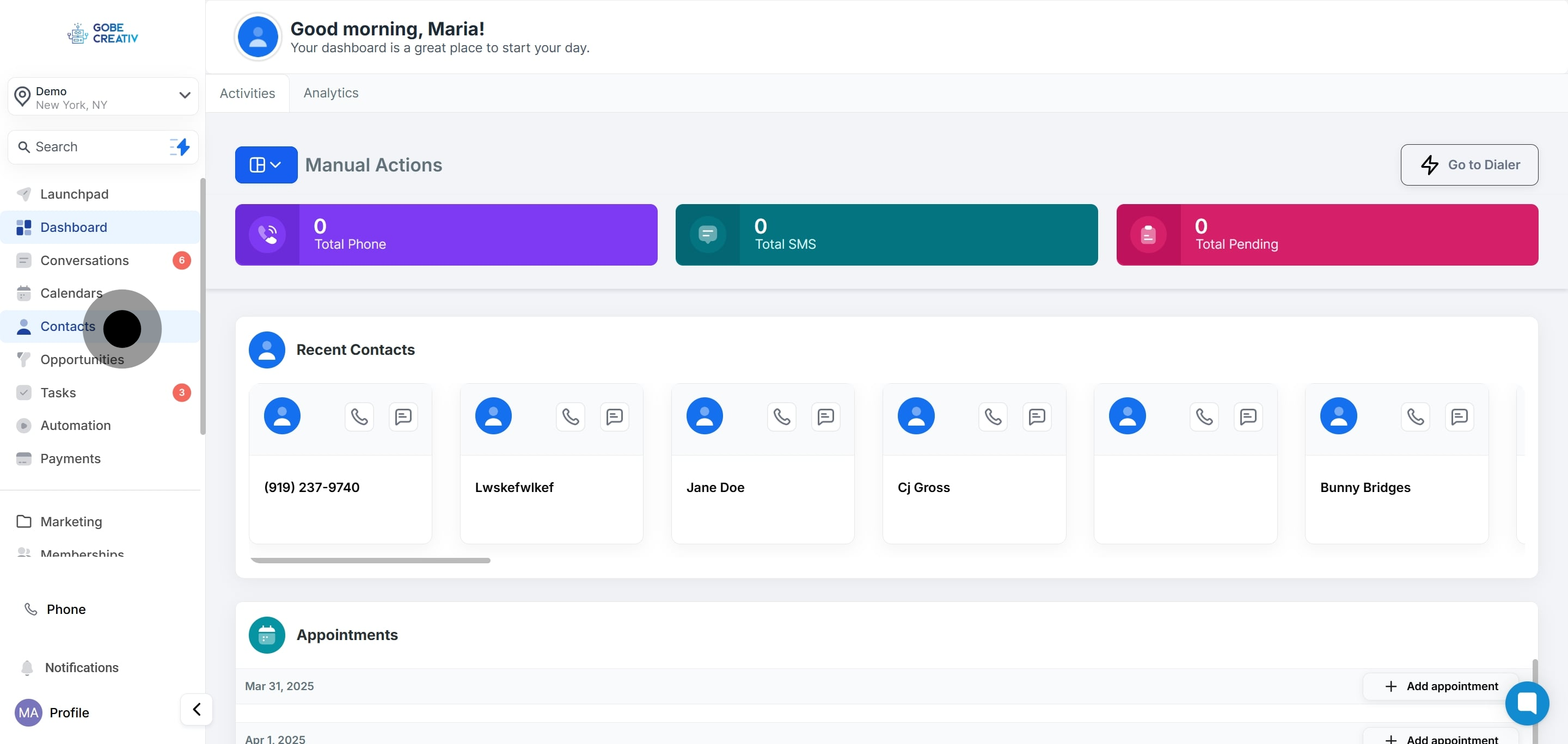
1. Click on the "Contacts" section to view your connections.
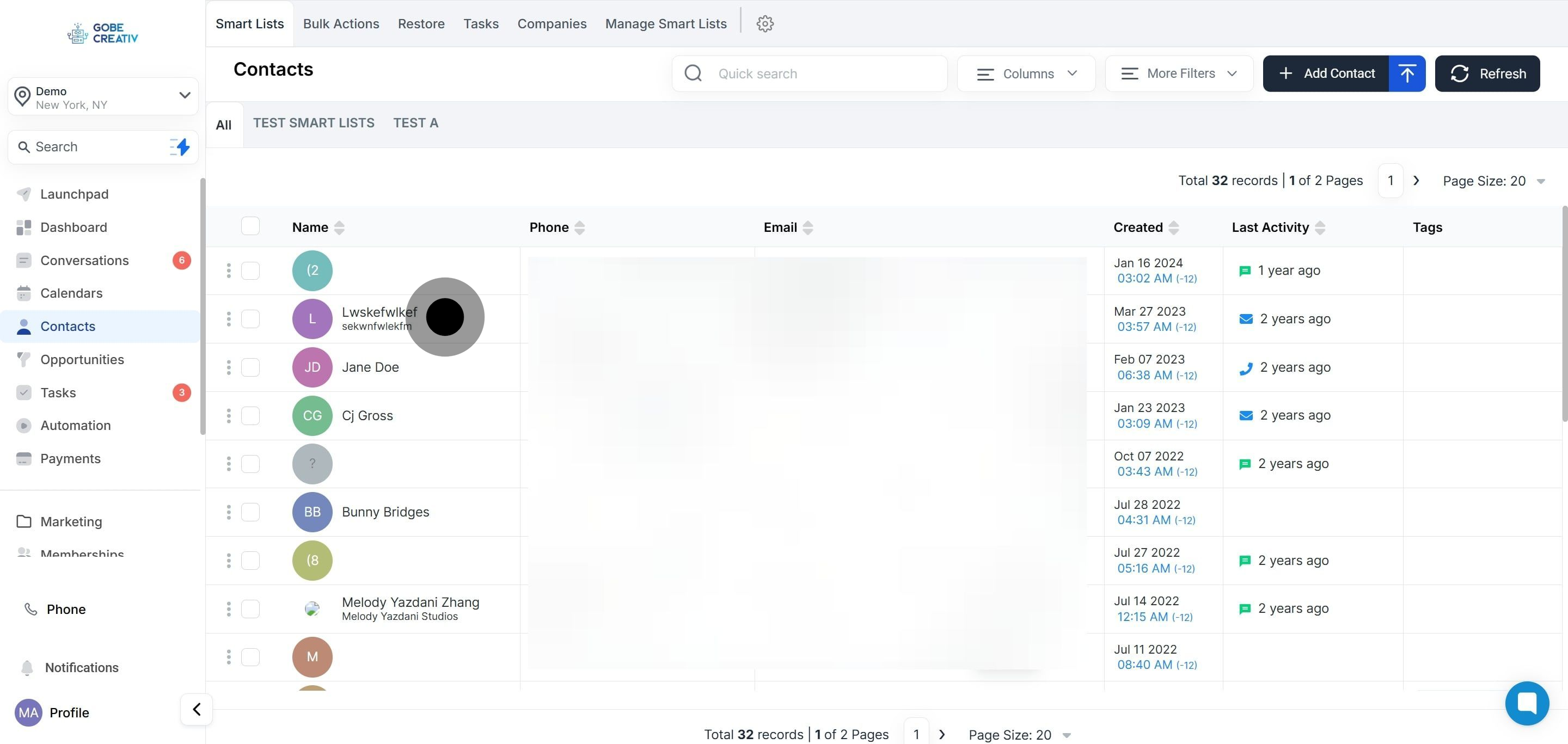
2. Choose the desired "Contact" from the list displayed.
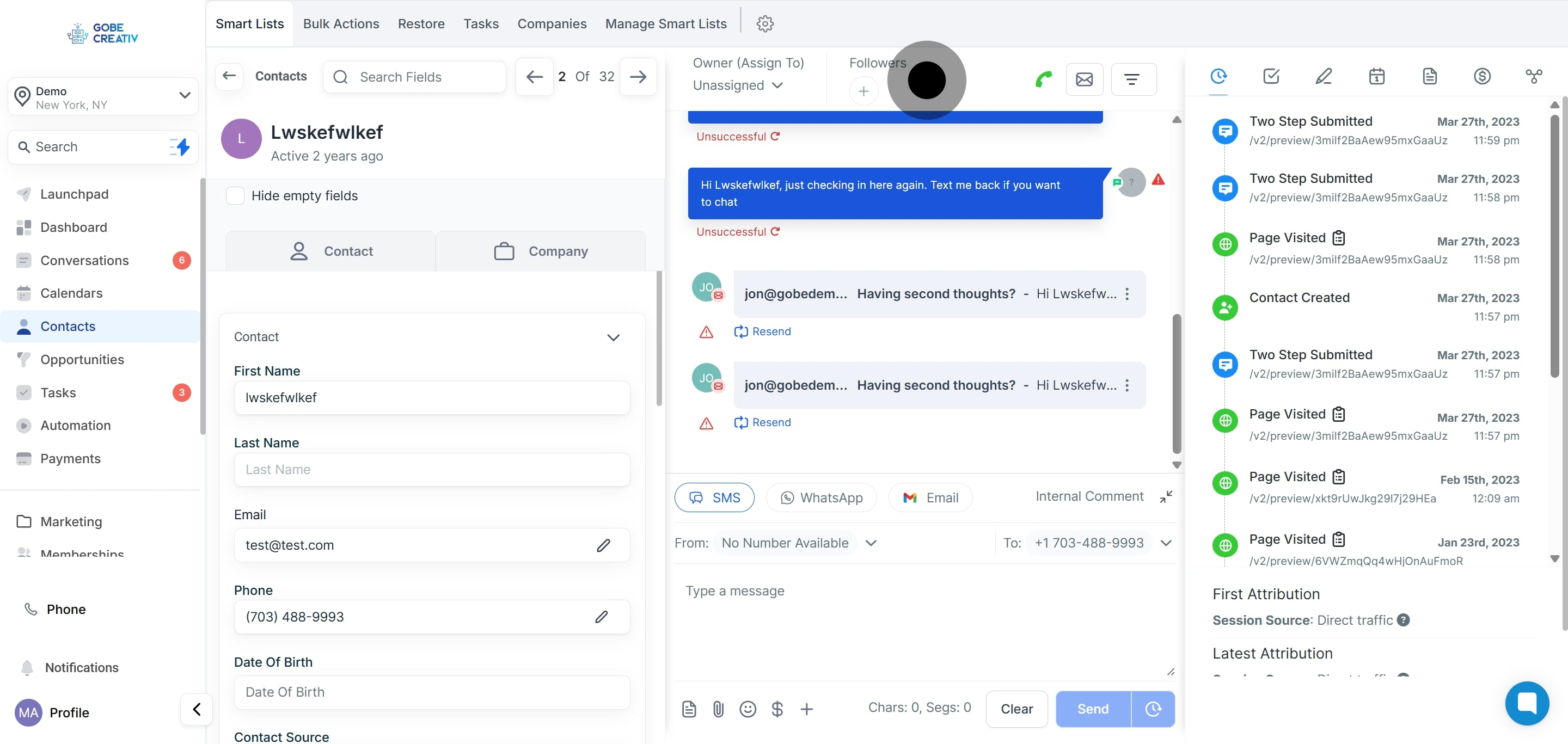
3. Review the "Messaging Header" for contact details.
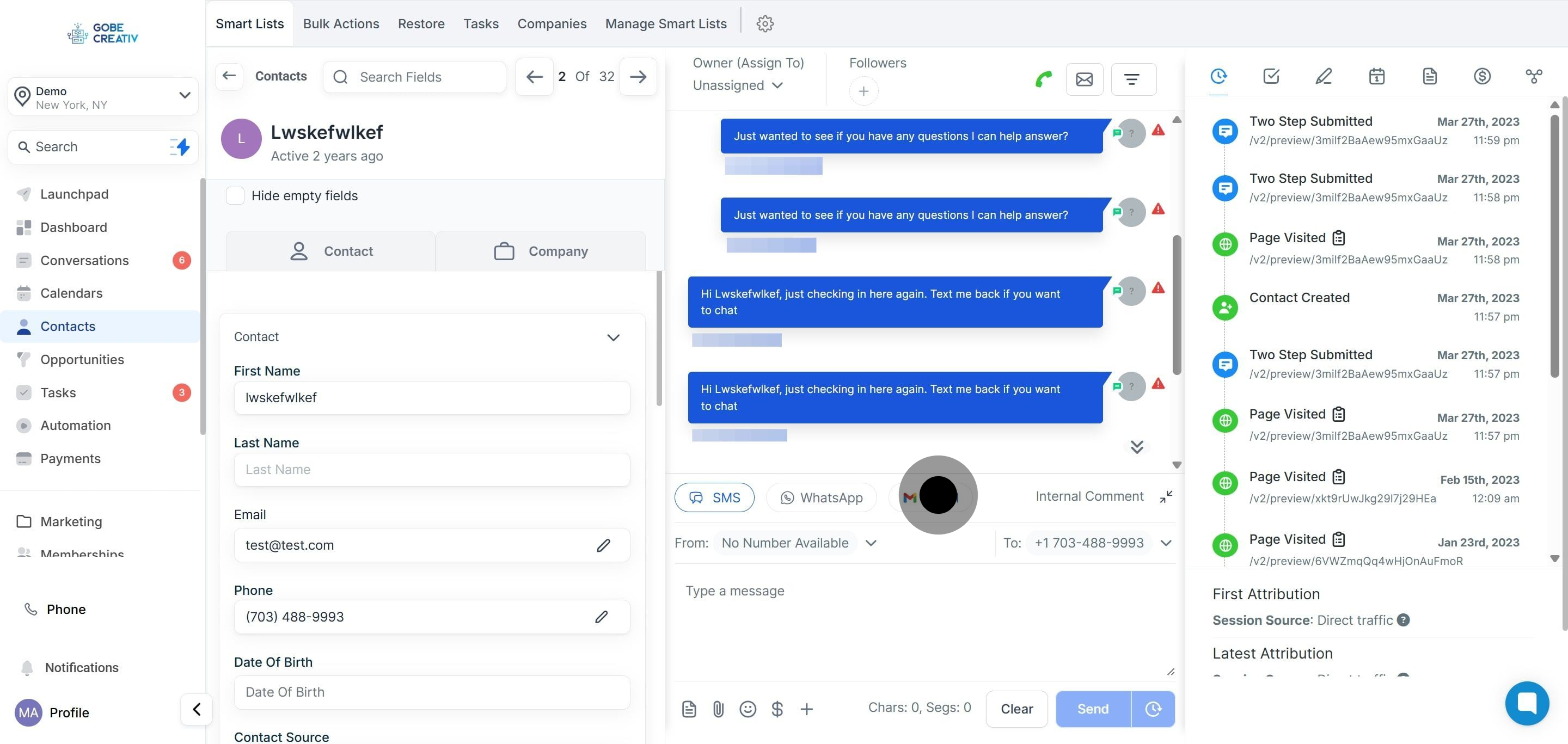
4. Select the phone icon to call your contact.
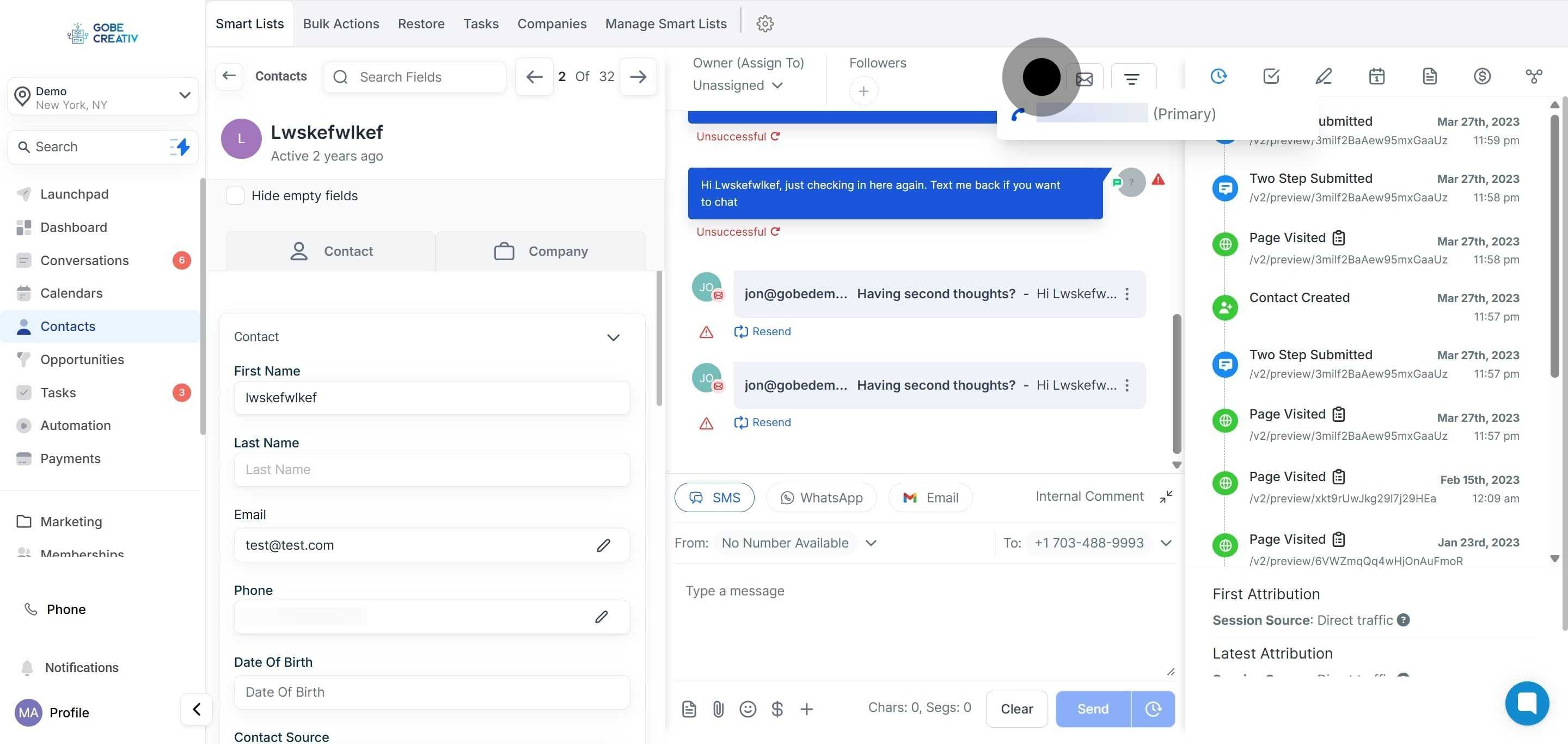
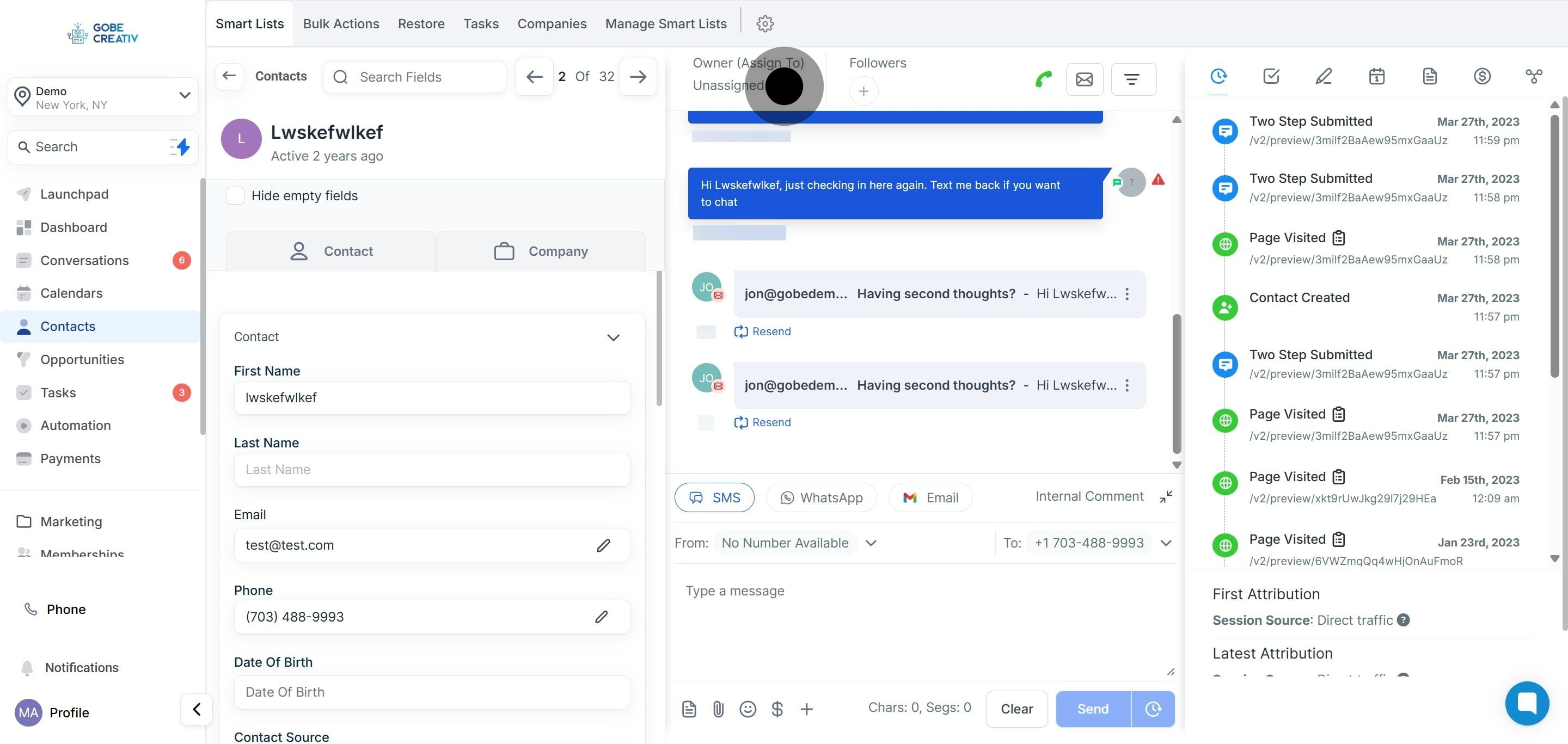
5. Click to "Assign Contact" for organization purposes.
To assign a contact to a specific employee or team member, click the designated button and select one of your registered CRM users to take ownership of the contact.
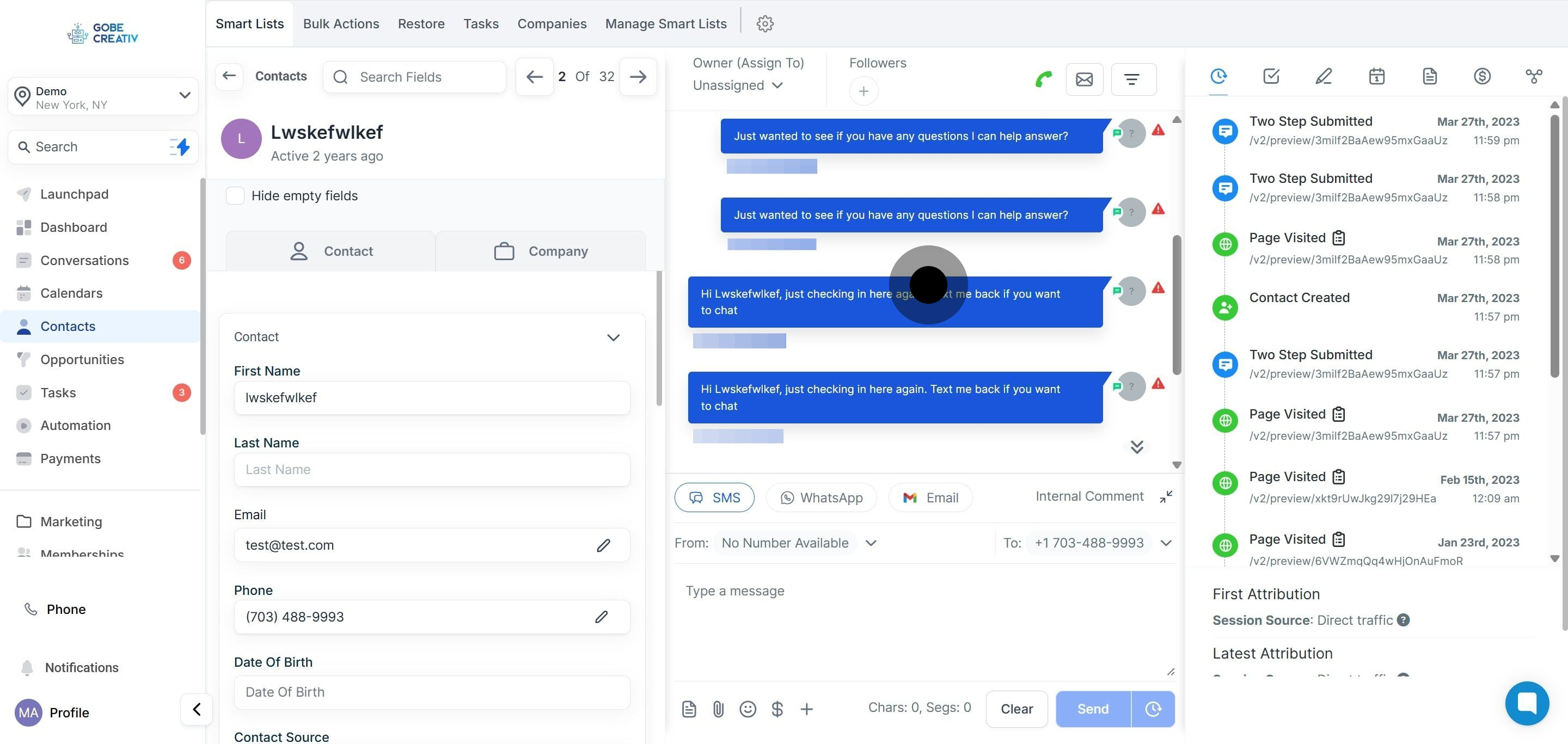
6. Explore the "Contact Message Threads" for communication history.
Here's where you can view the entire history of your messages and conversations with a specific contact. All messages and calls processed by your CRM for that contact will be displayed here.
7. Click here to send messages via SMS.
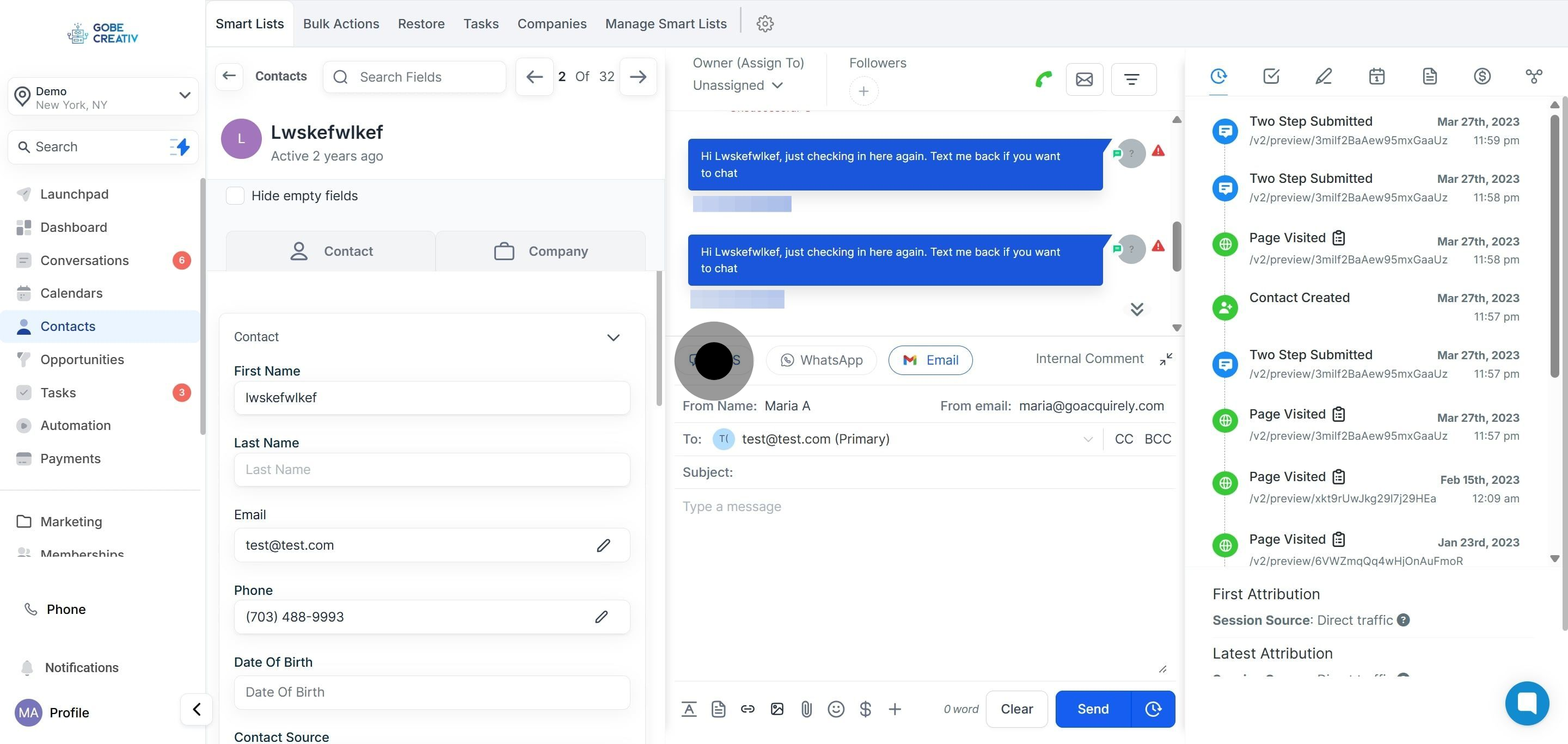
8. Click here to send messages through Email.