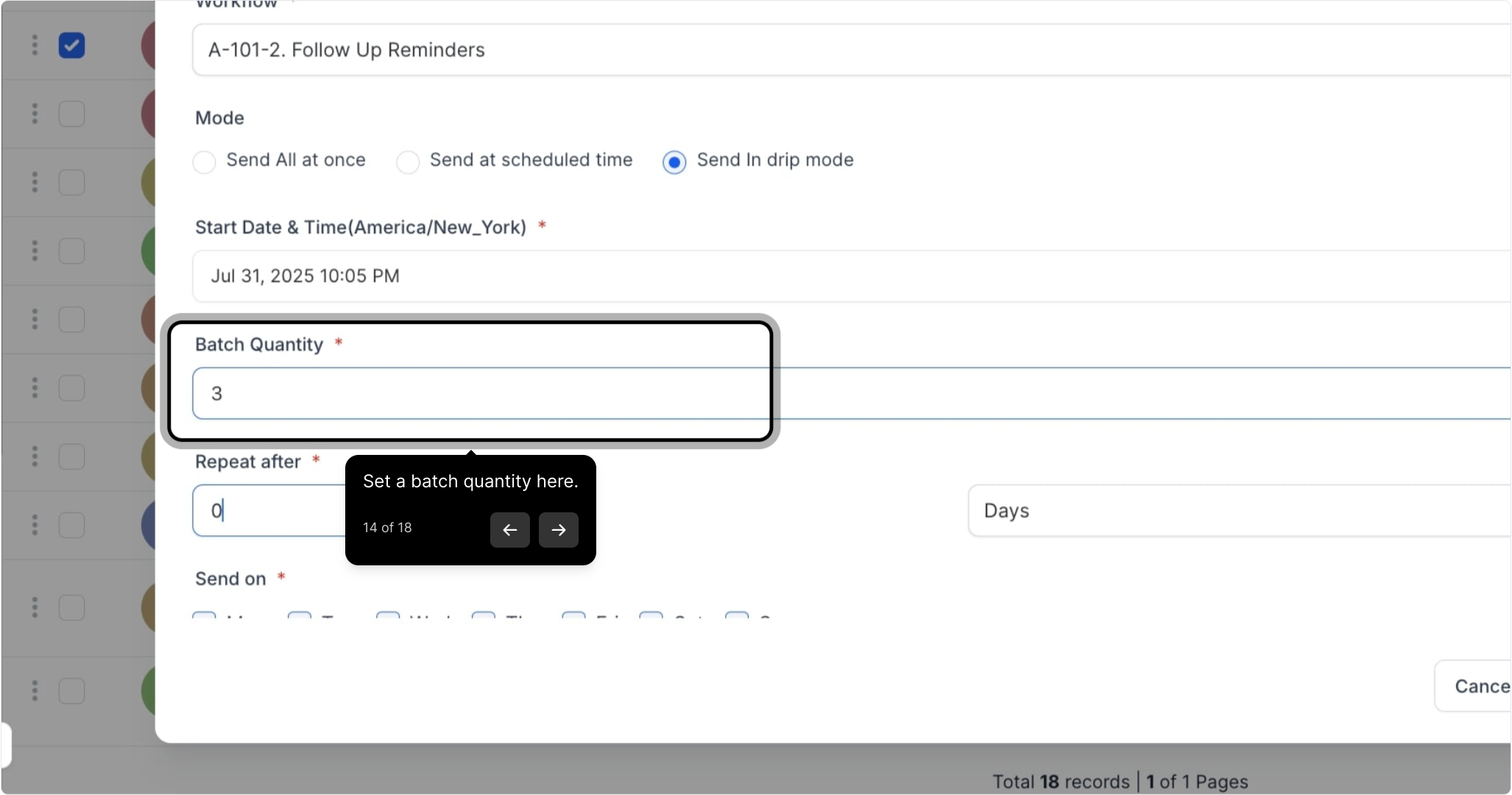
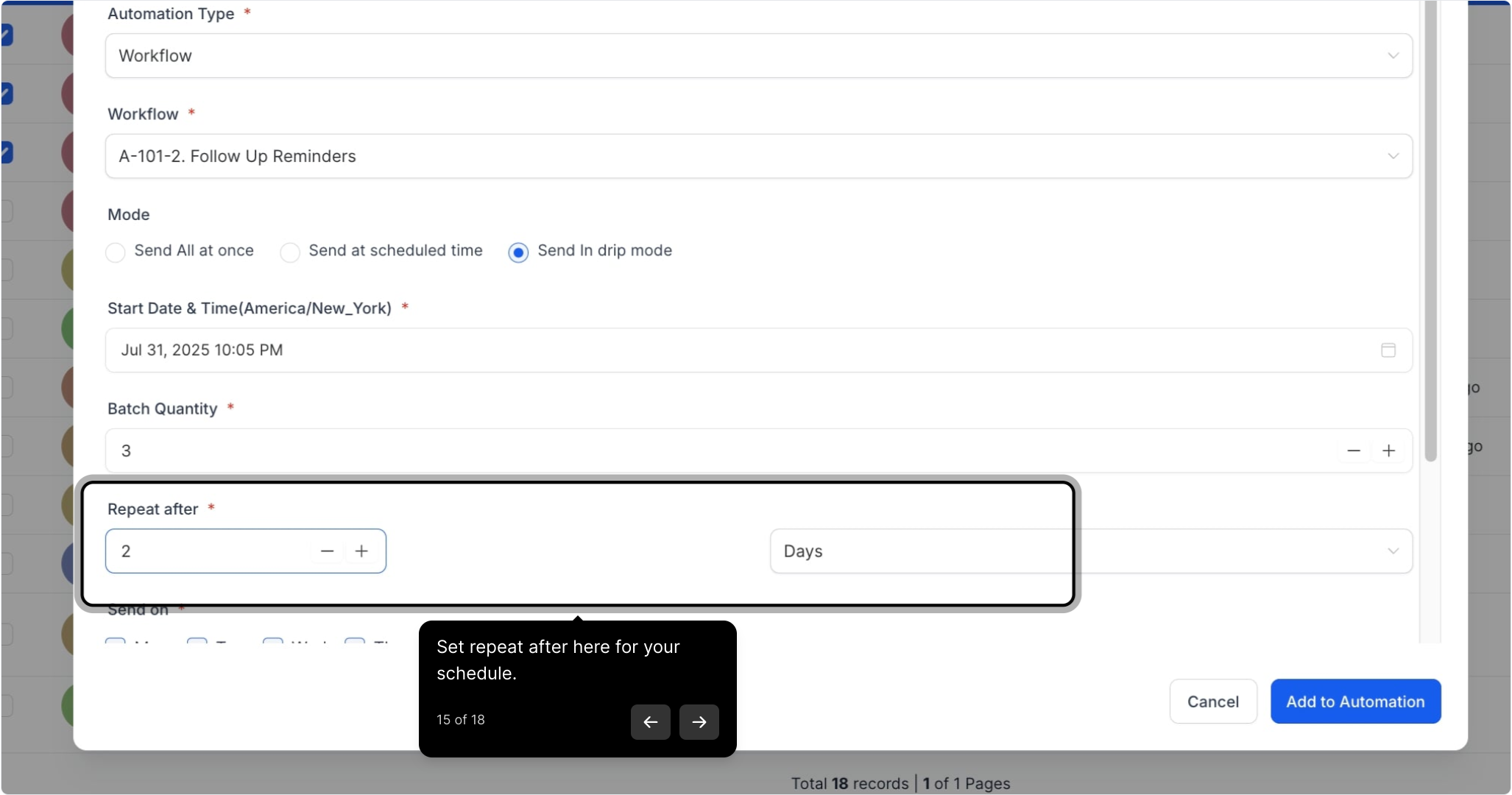
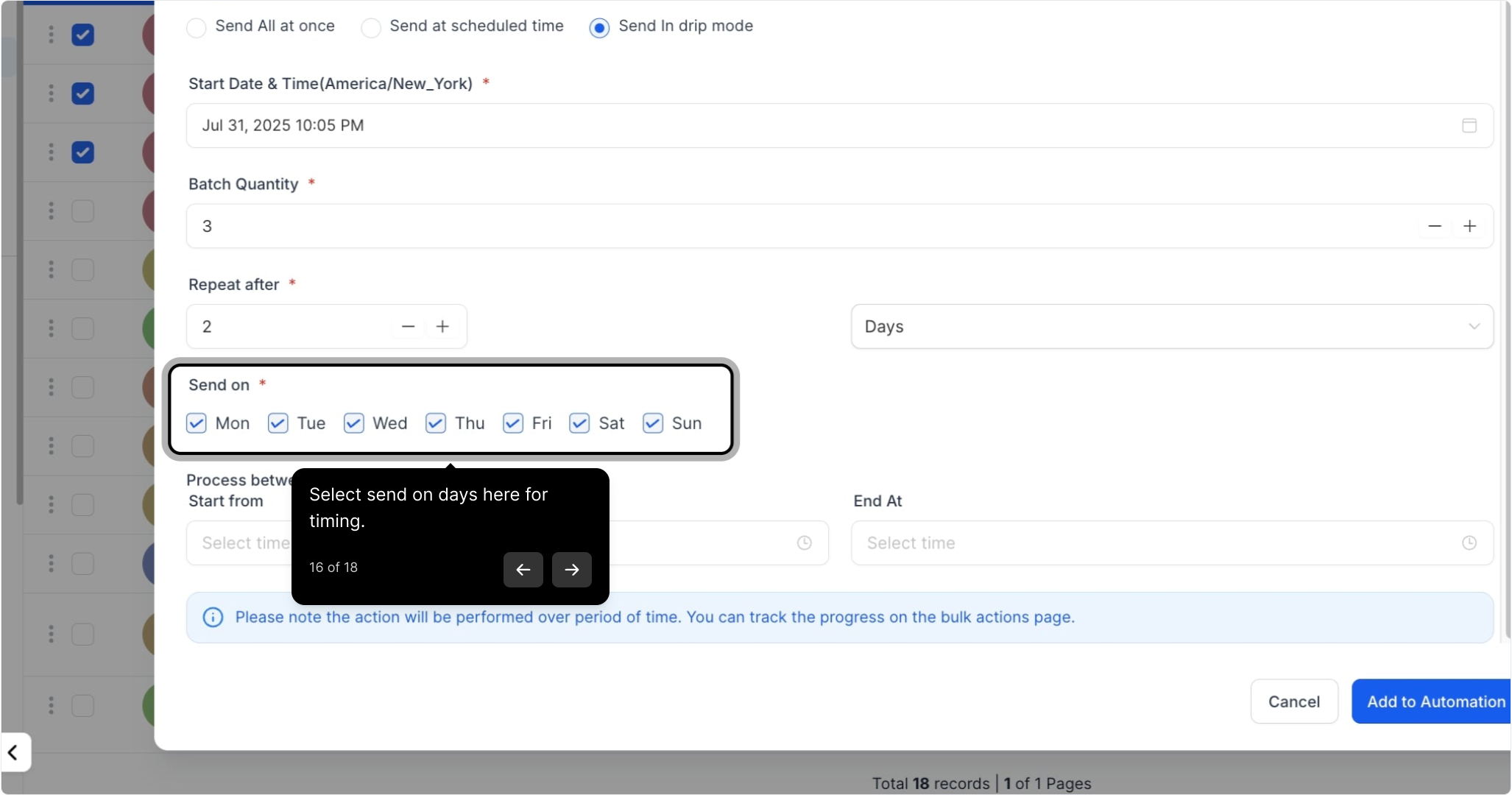
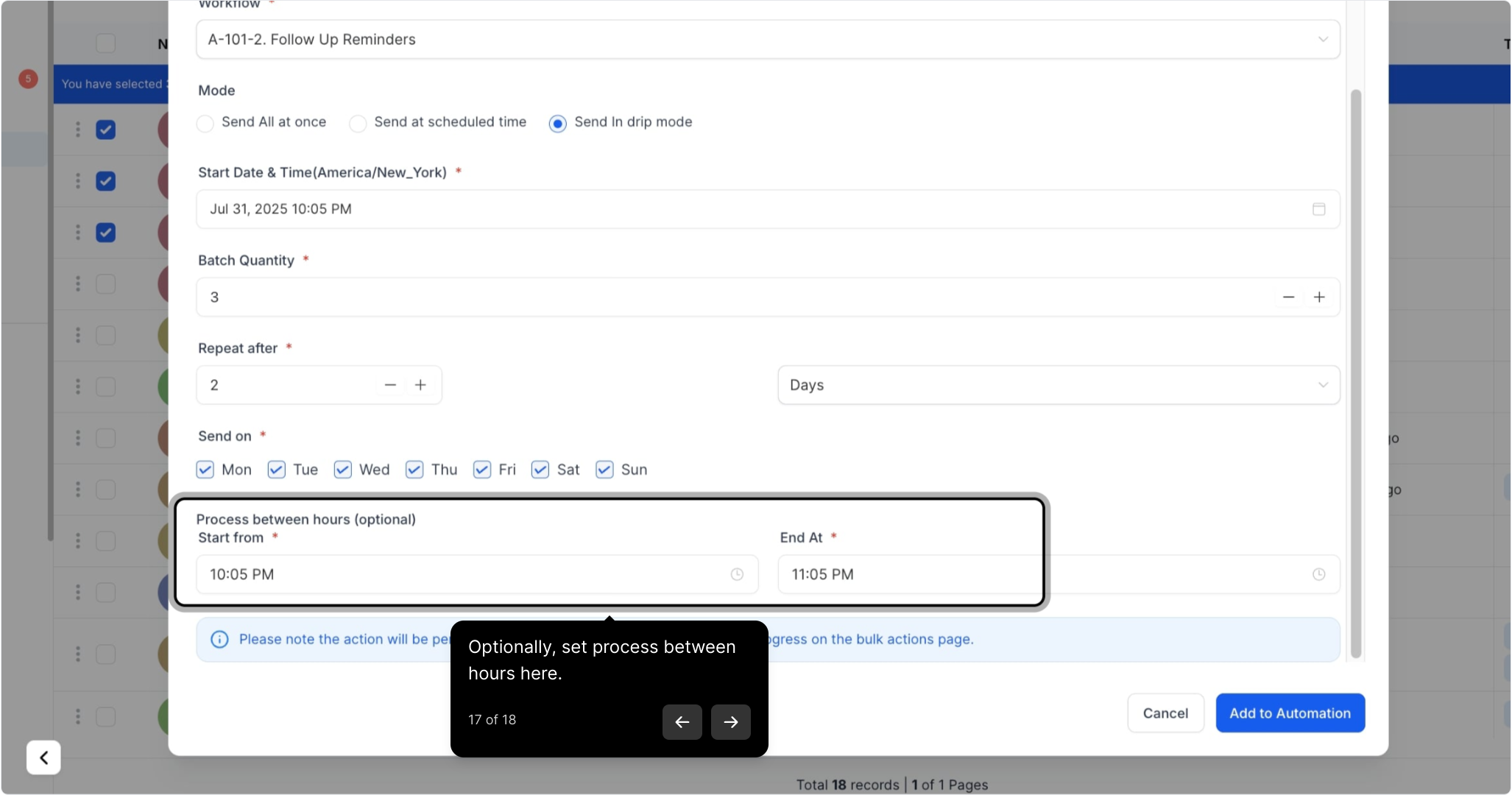
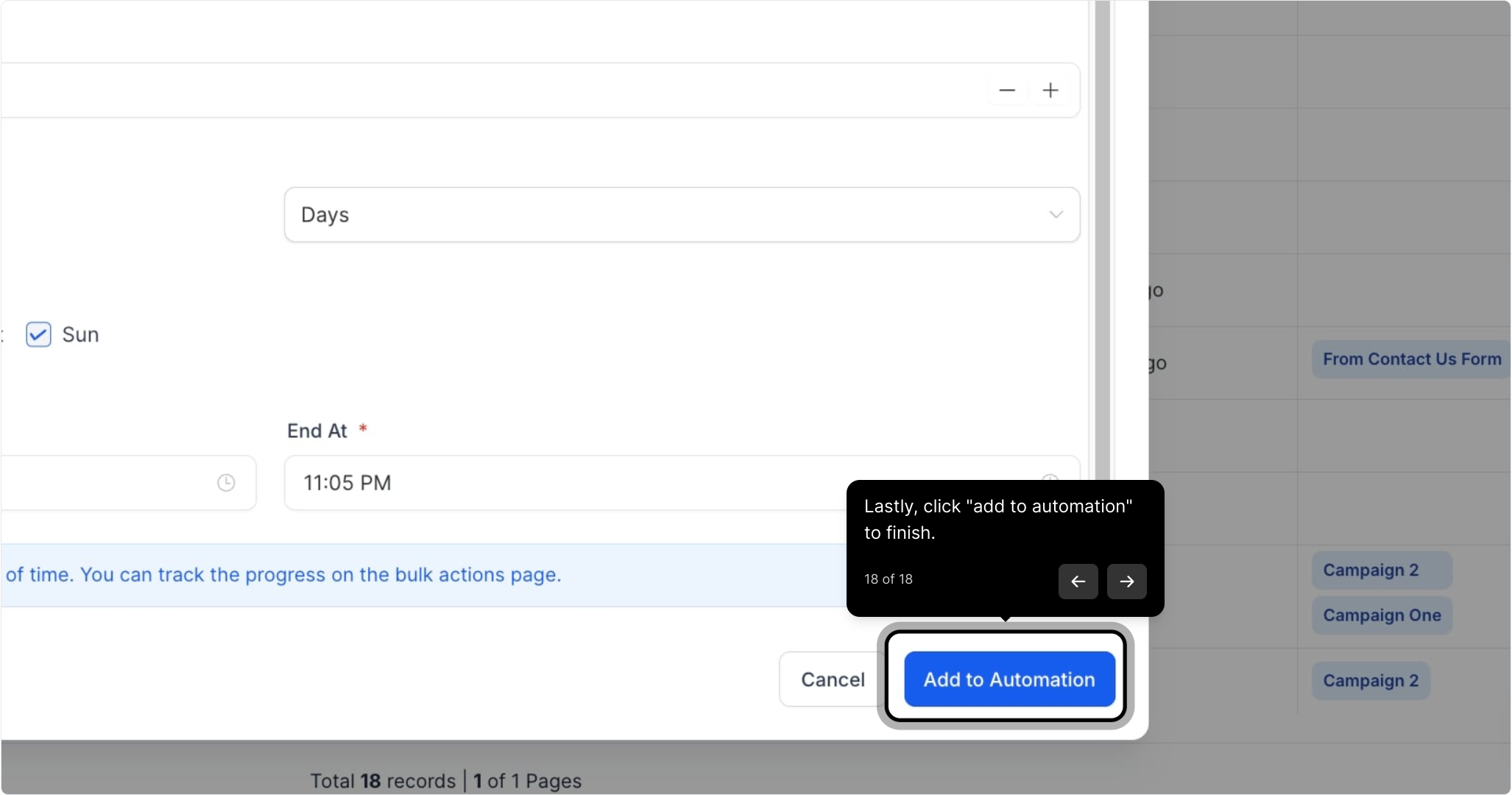
This guide explains how to add contacts to a workflow in bulk. You'll learn how to select multiple contacts, choose the desired workflow, and apply settings like adding all at once, scheduling, or using drip mode.
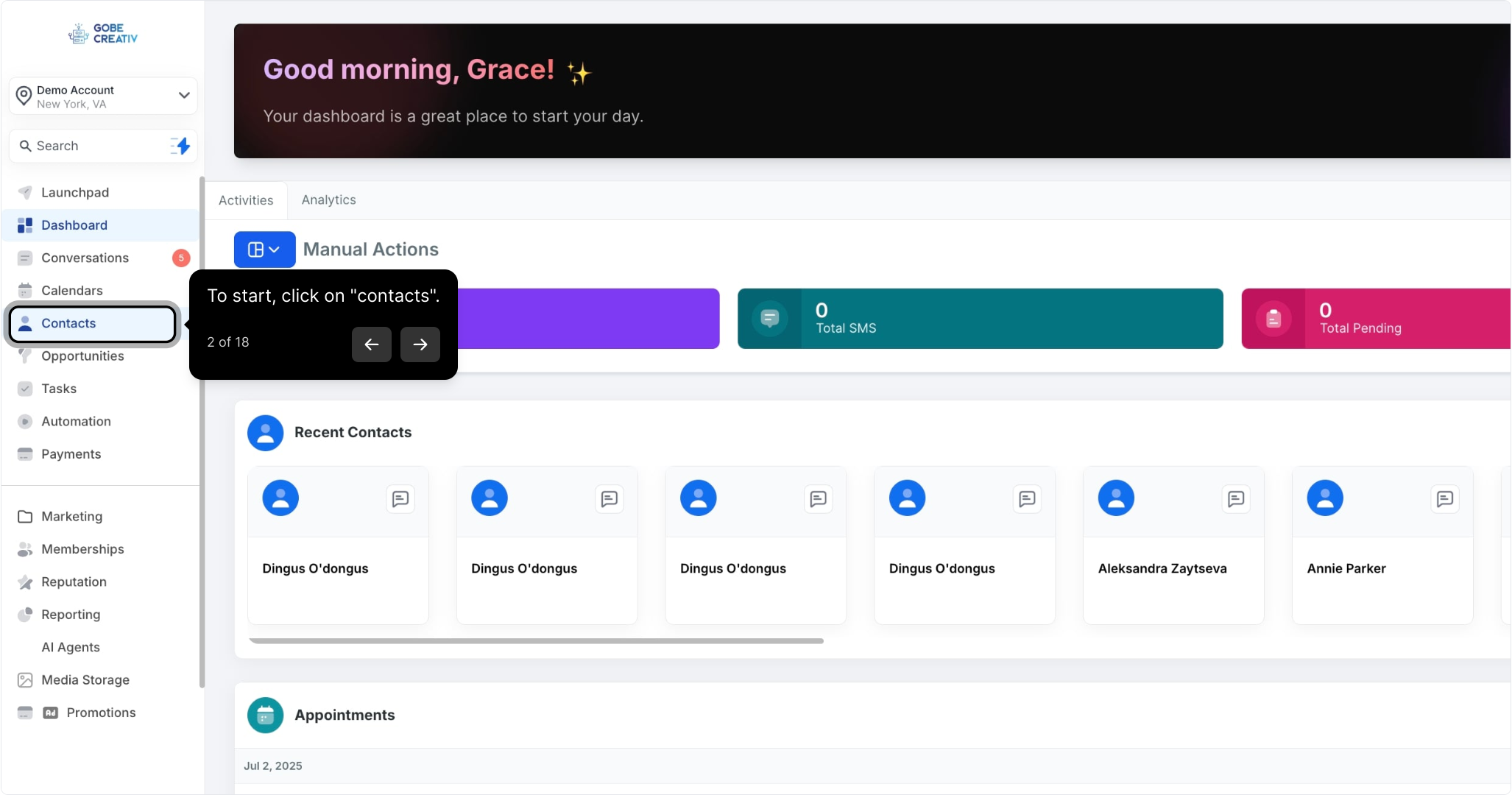
2. To start, click on "contacts".
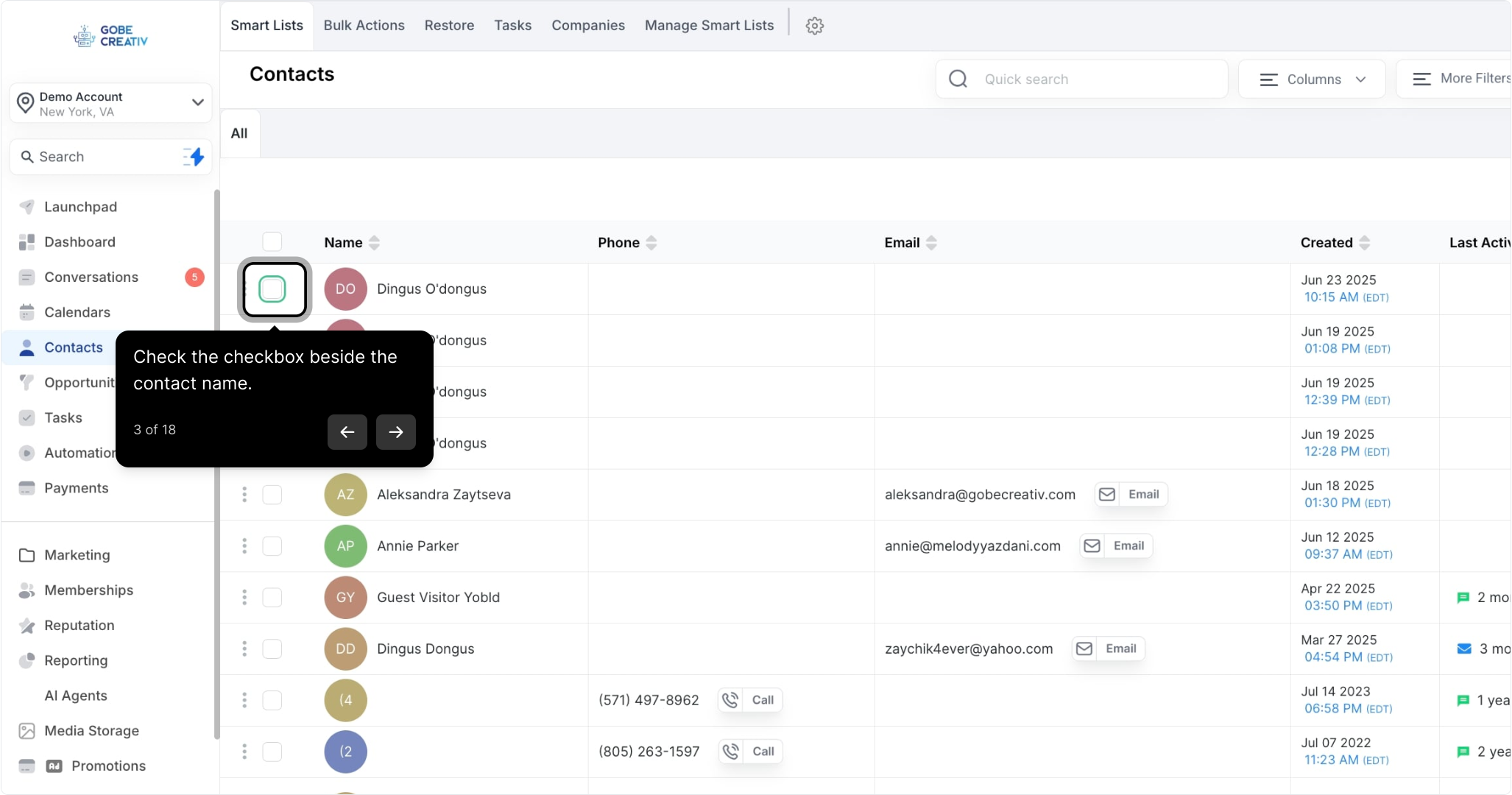
3. Check the checkbox beside the contact name.
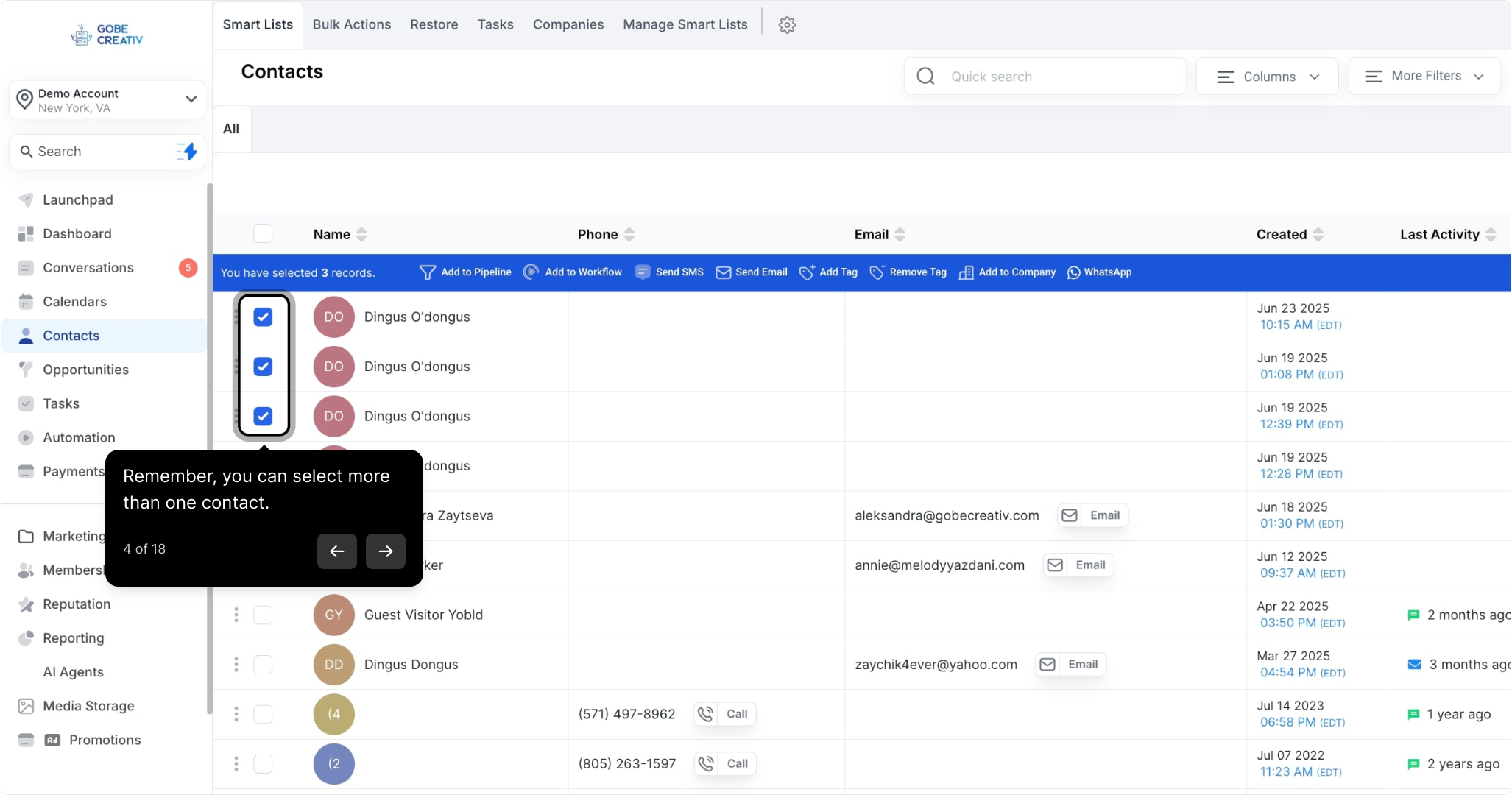
4. Remember, you can select more than one contact.
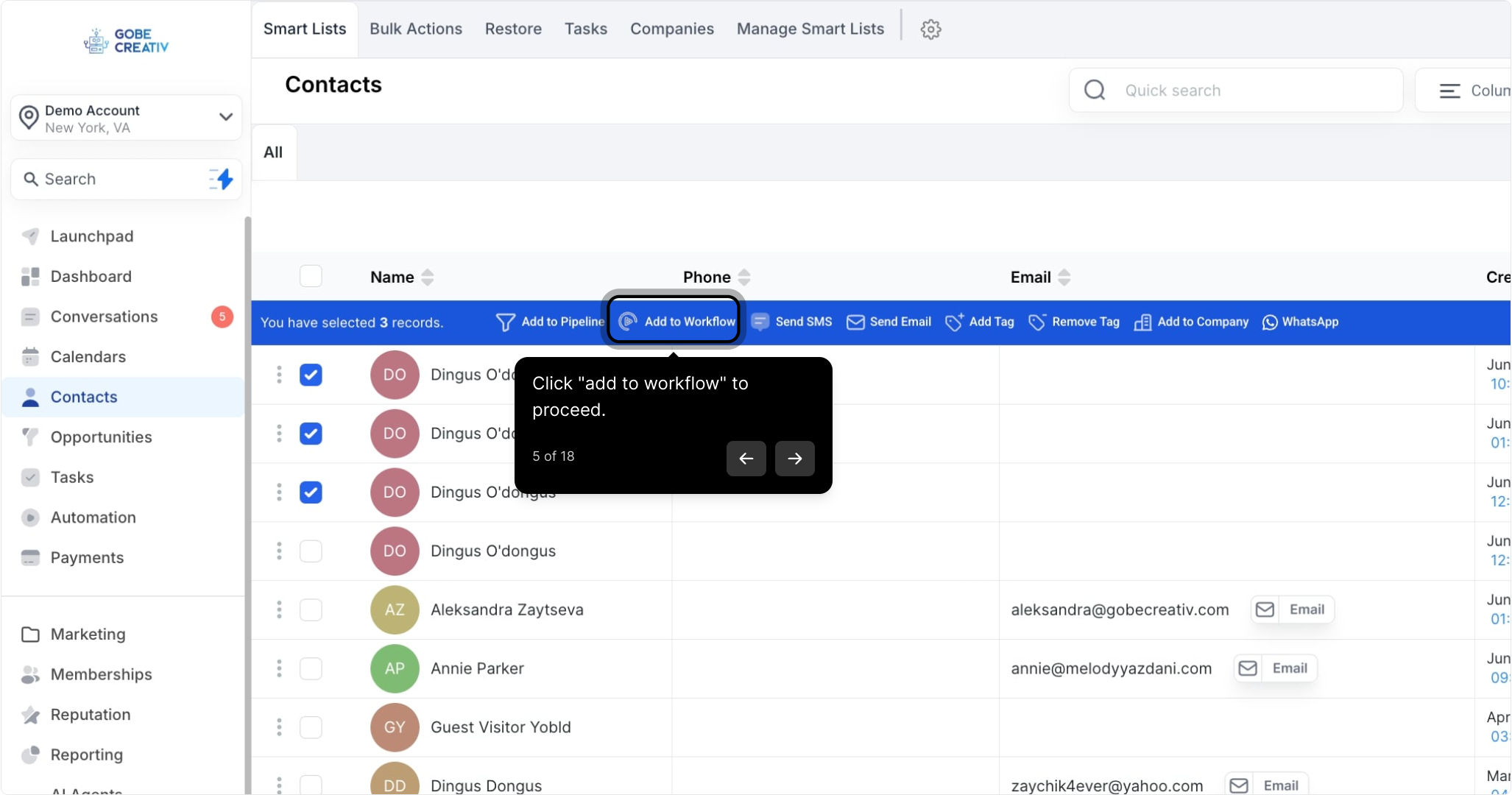
5. Click "add to workflow" to proceed.
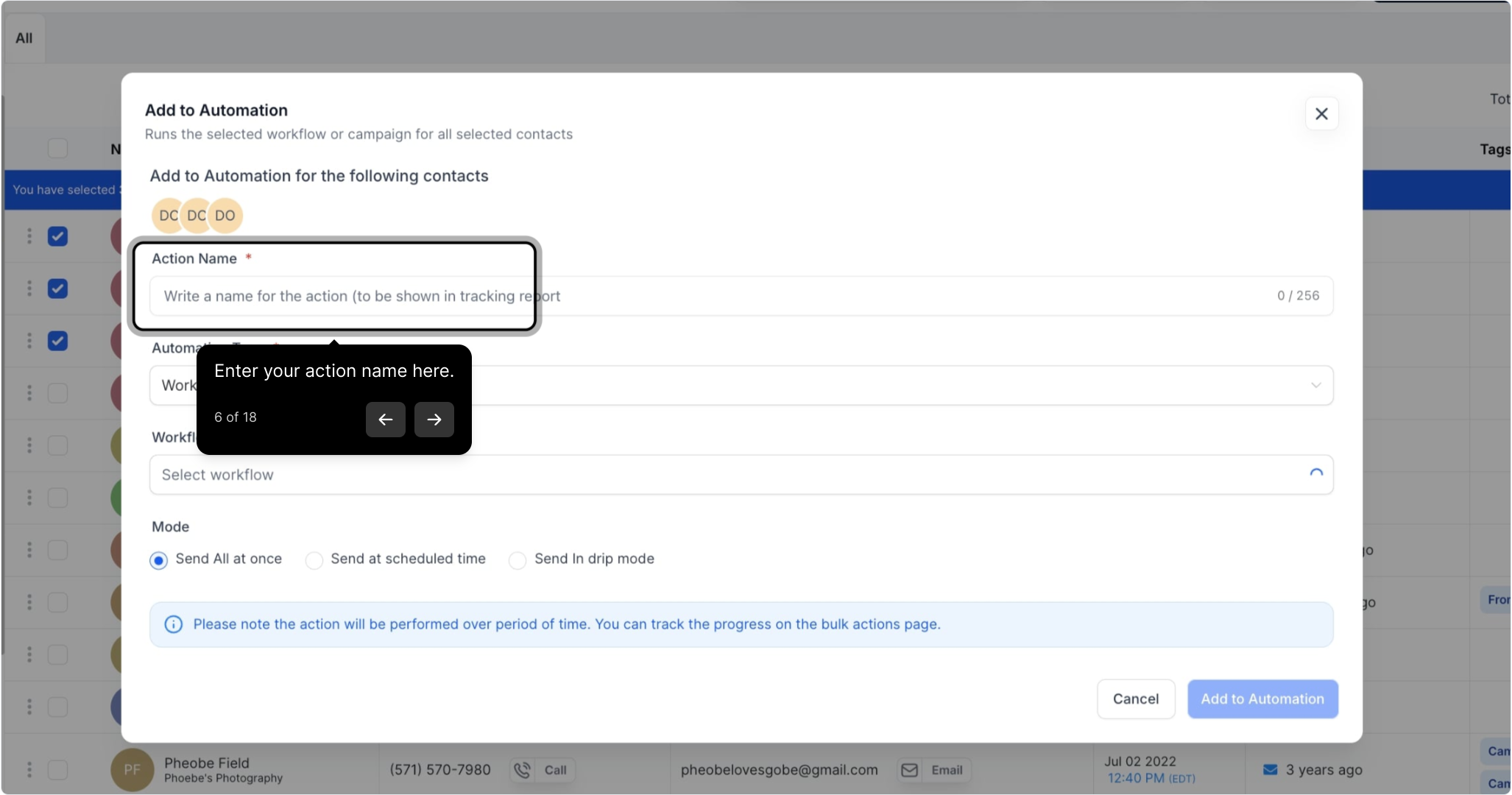
6. Enter your action name here.
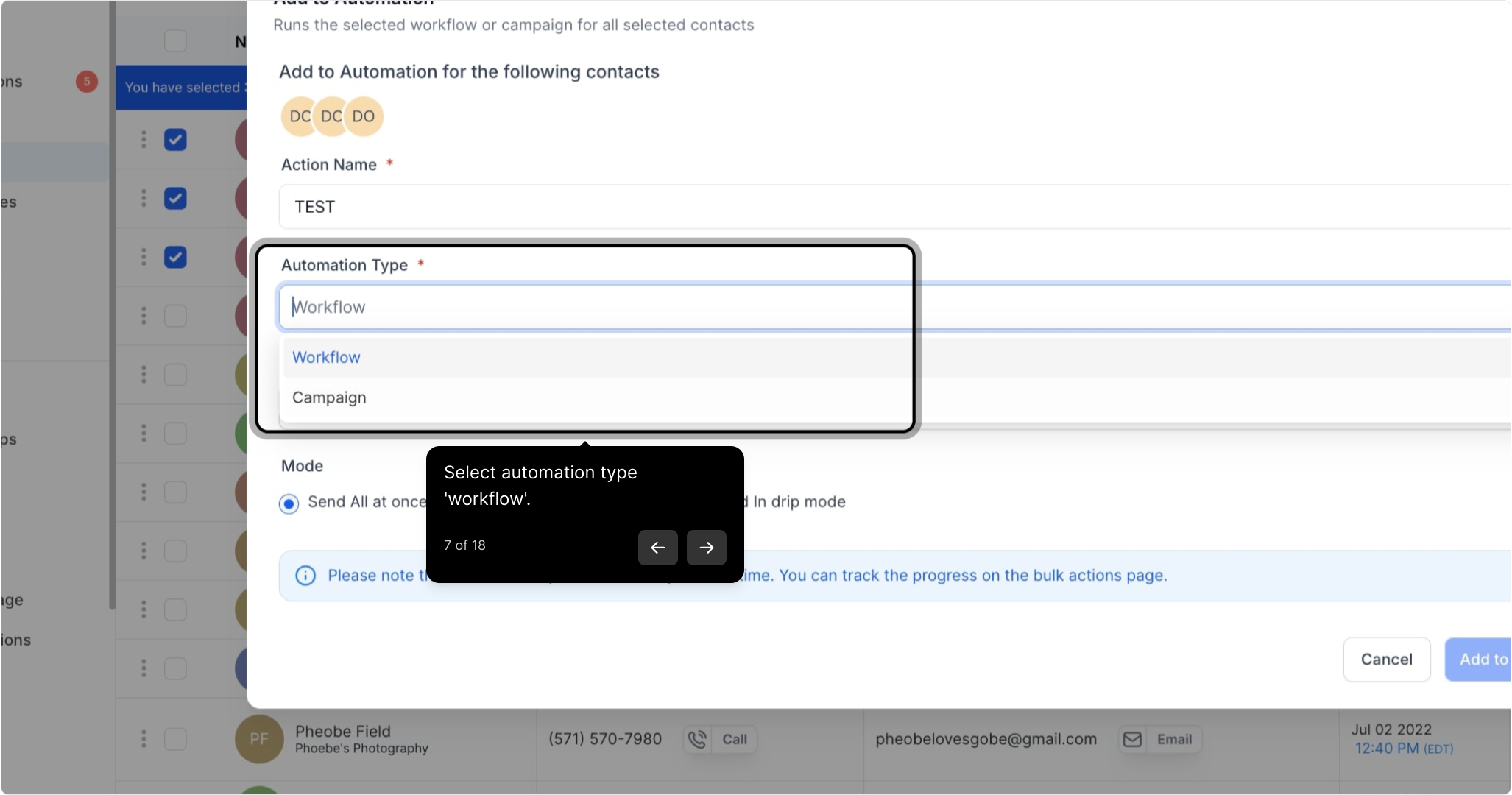
7. Select automation type 'workflow'.
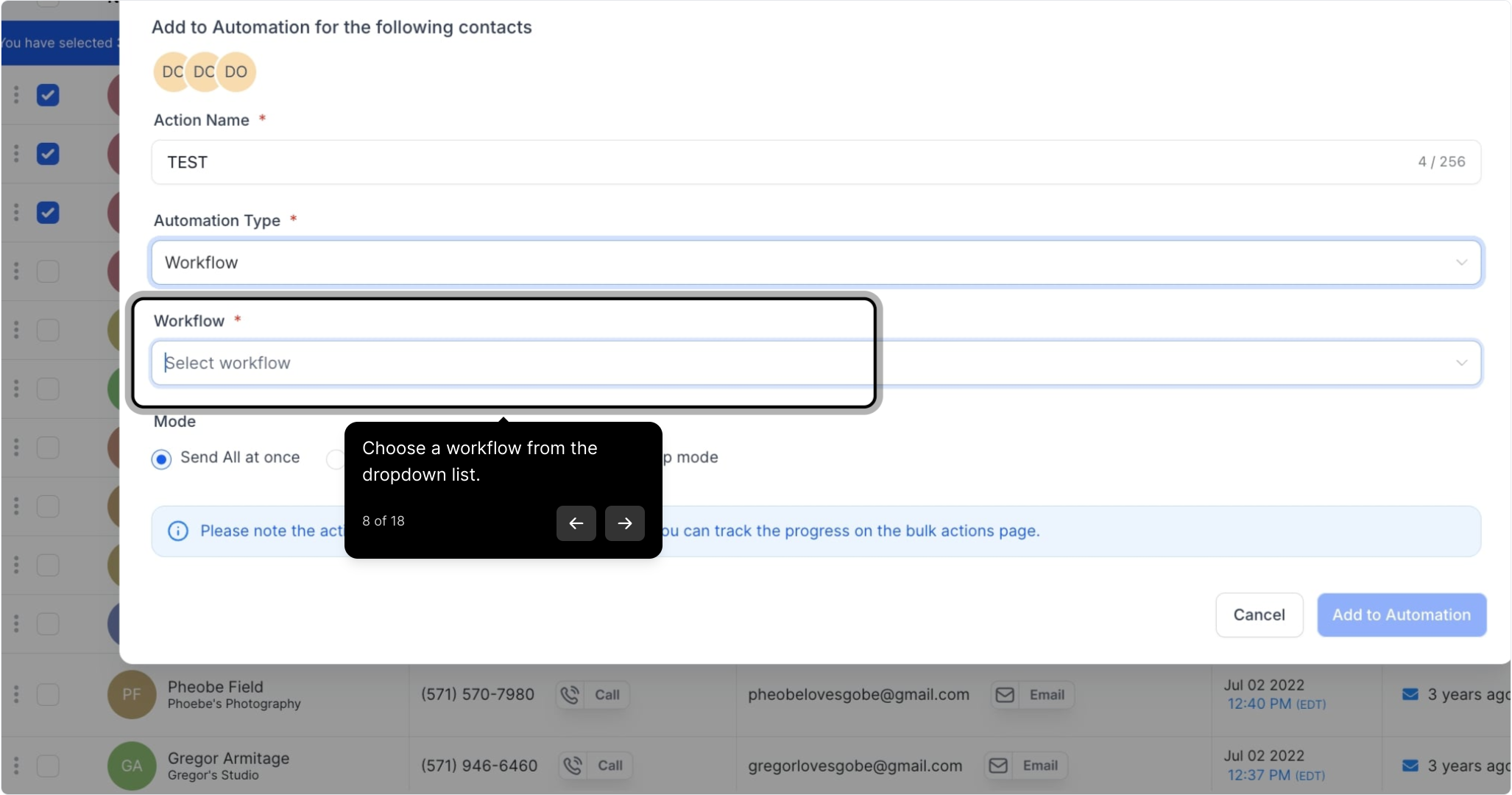
8. Choose a workflow from the dropdown list.
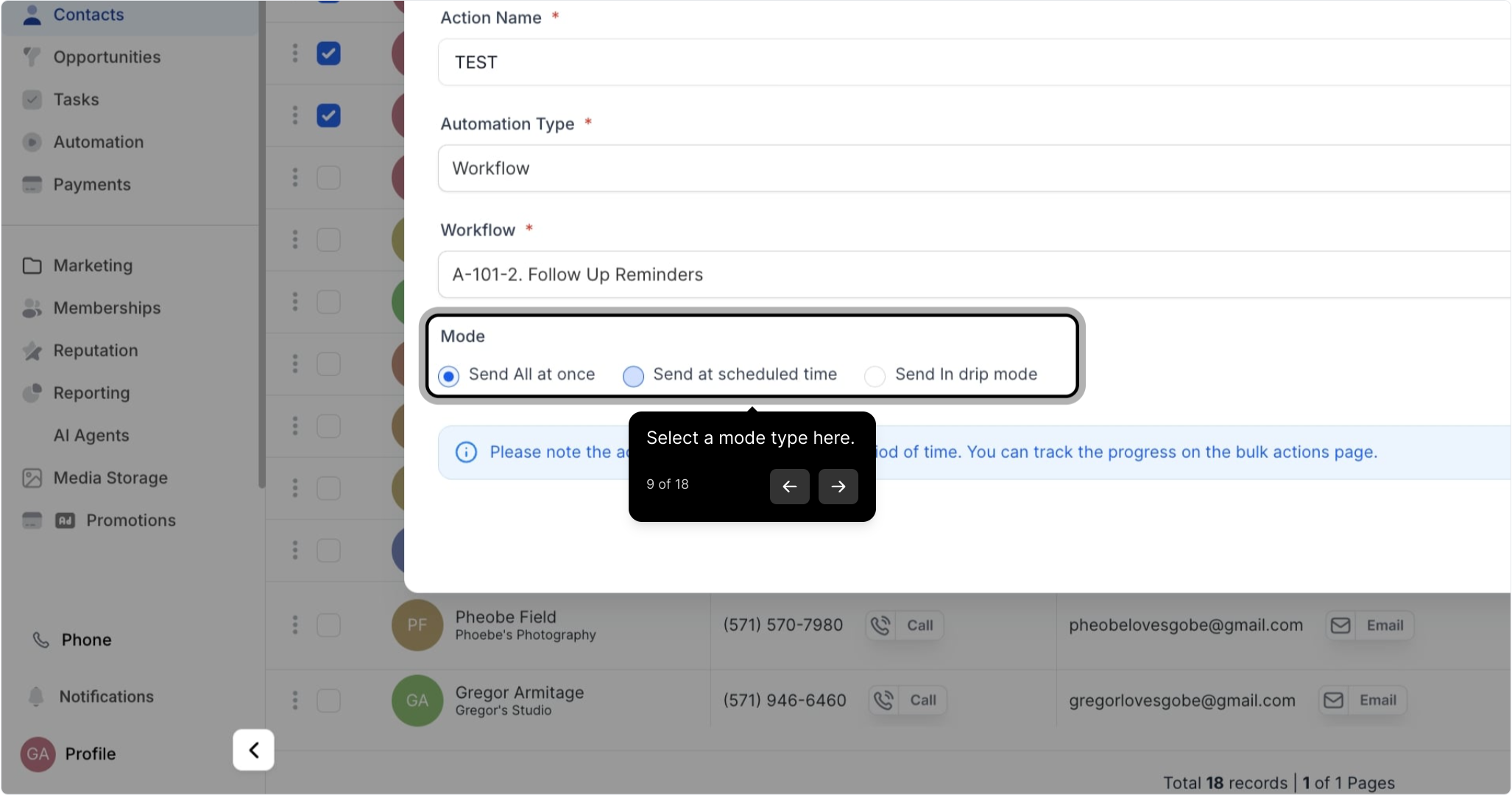
9. Select a mode type here.
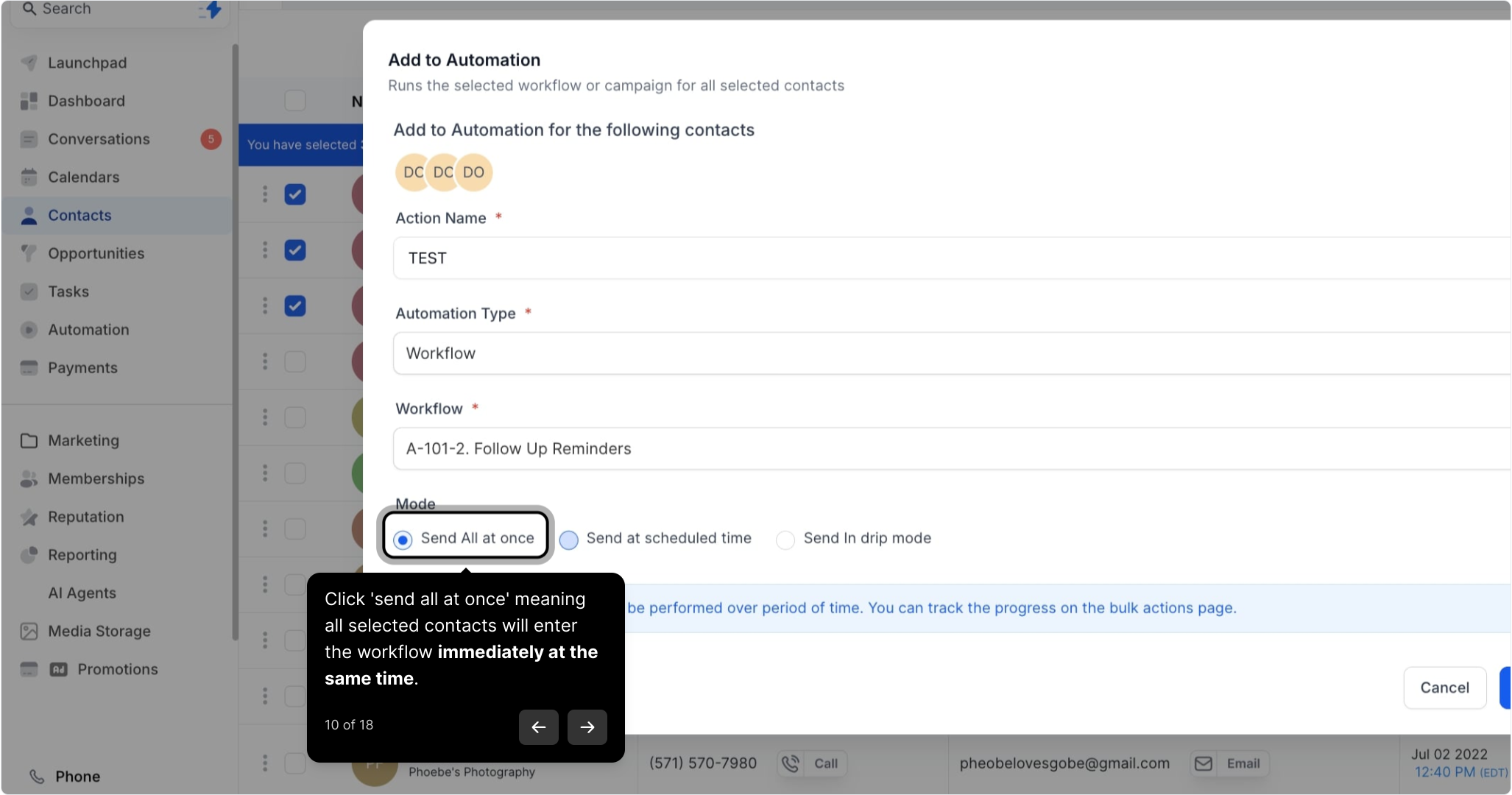
10. Click 'send all at once' meaning all selected contacts will enter the workflow immediately at the same time.
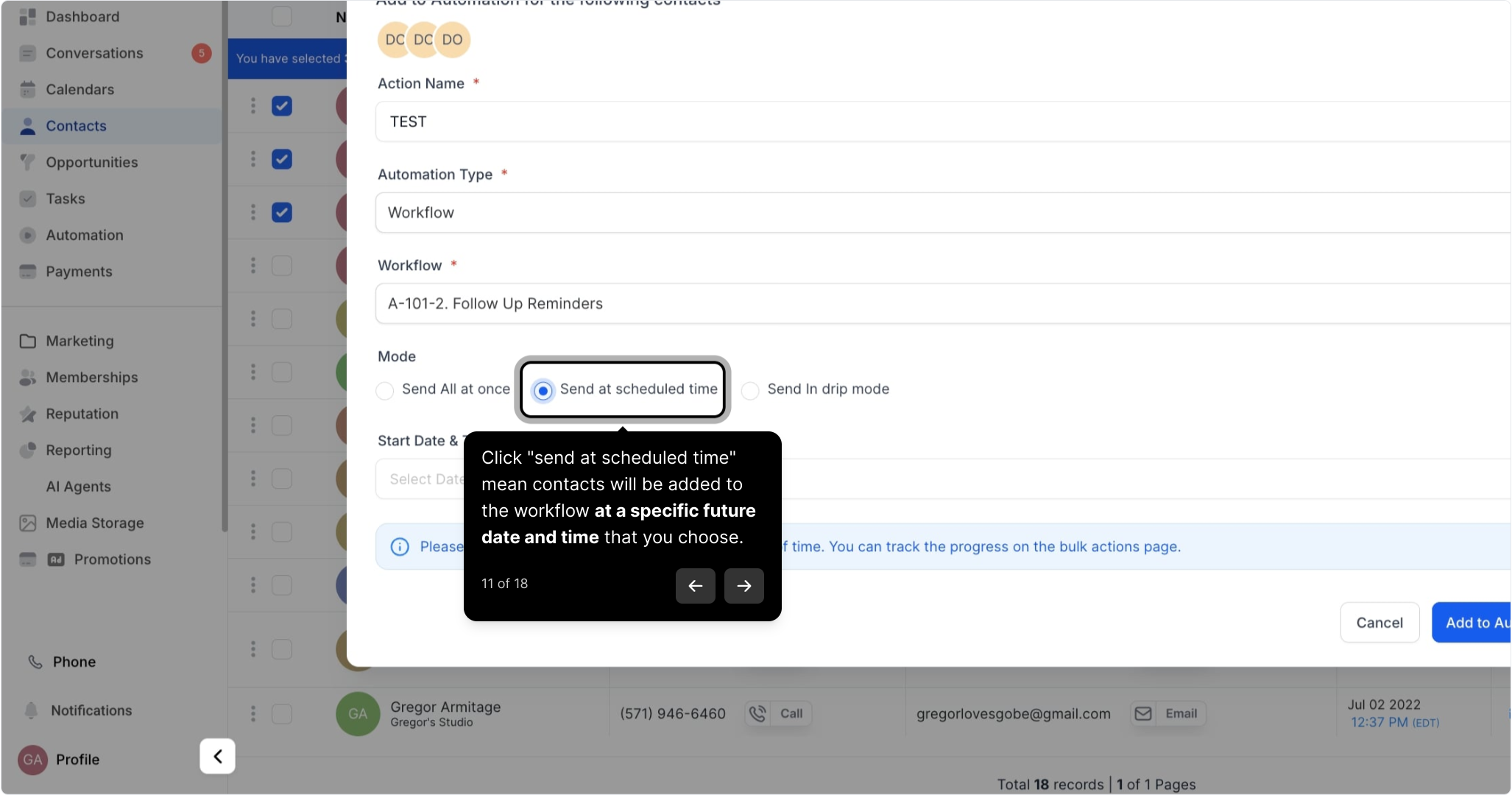
11. Click "send at scheduled time" mean contacts will be added to the workflow at a specific future date and time that you choose.
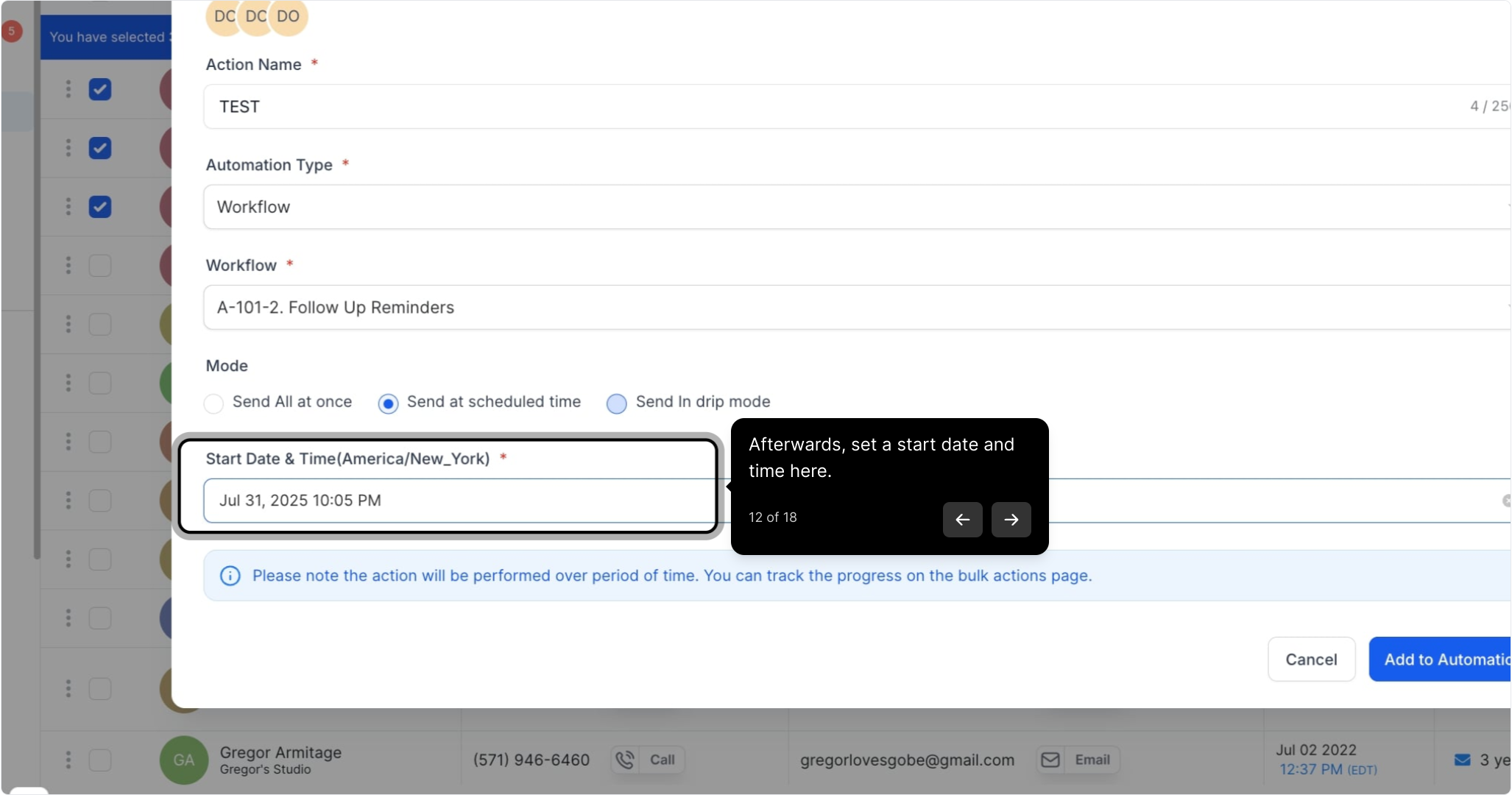
12. Afterwards, set a start date and time here.
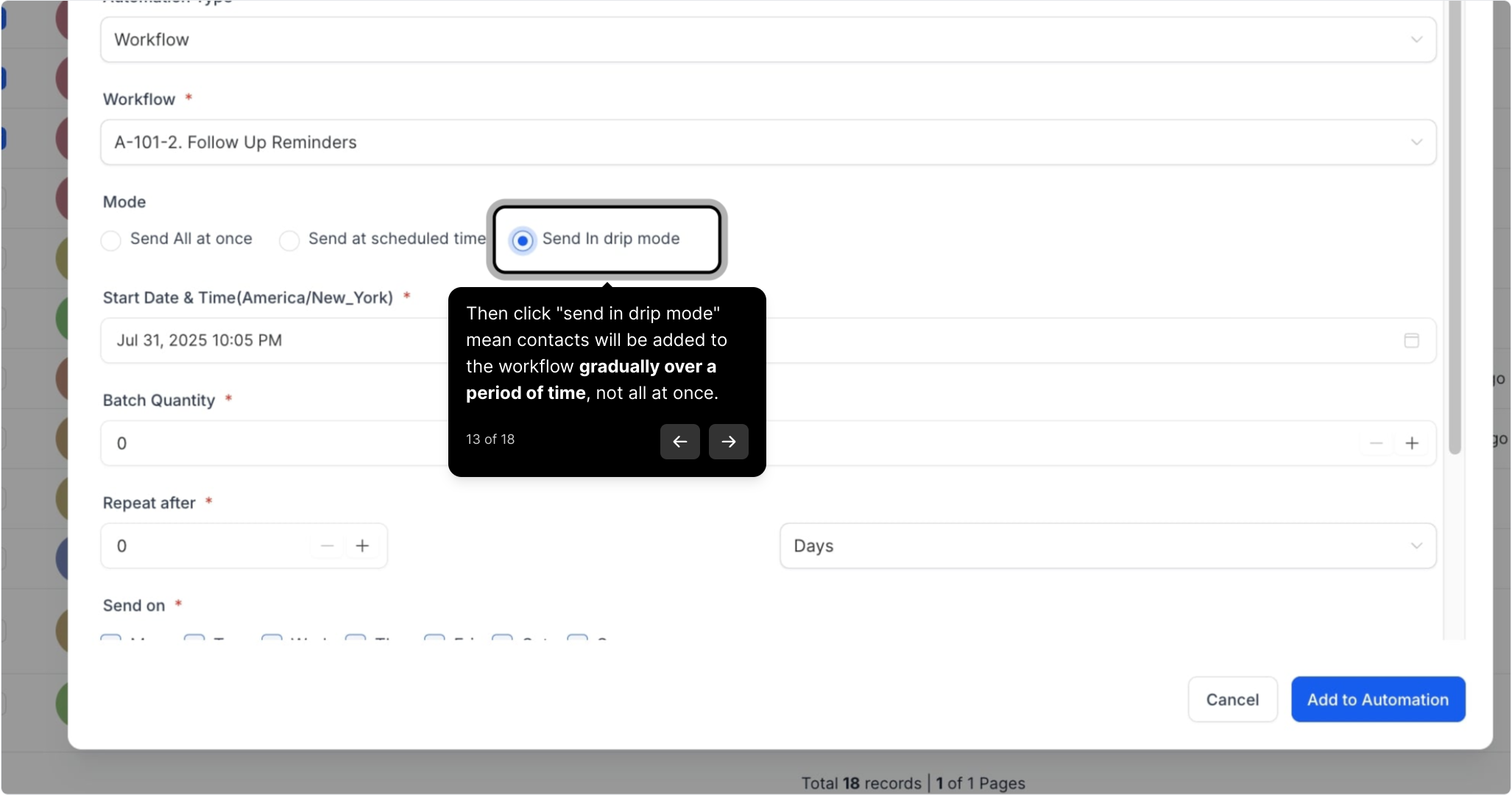
13. Then click "send in drip mode" mean contacts will be added to the workflow gradually over a period of time, not all at once.