Email snippets help you save time by reusing common messages or templates. This guide walks you through the steps to create a new email snippet for quick, consistent communication.
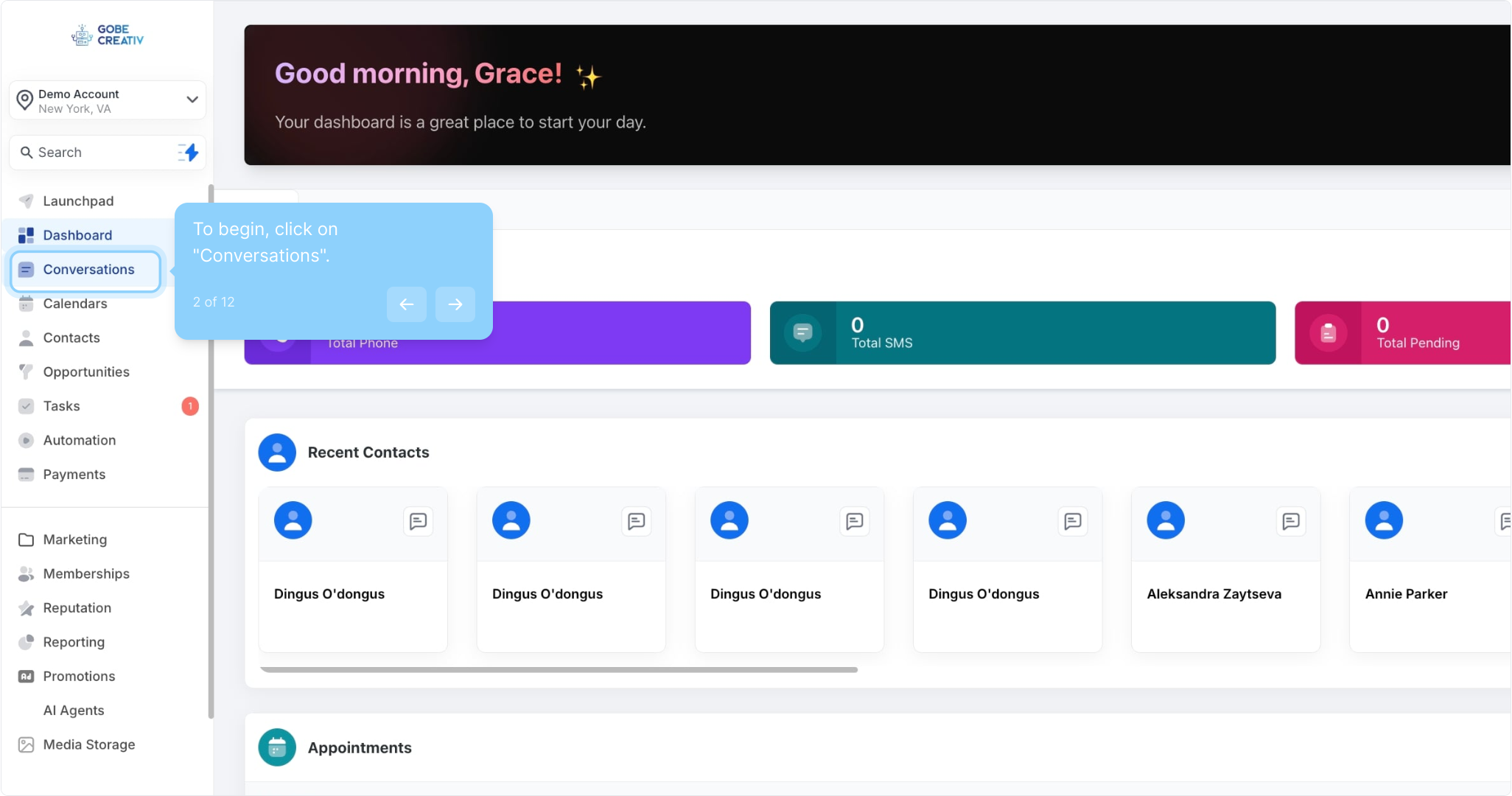
2. To begin, click on "Conversations".
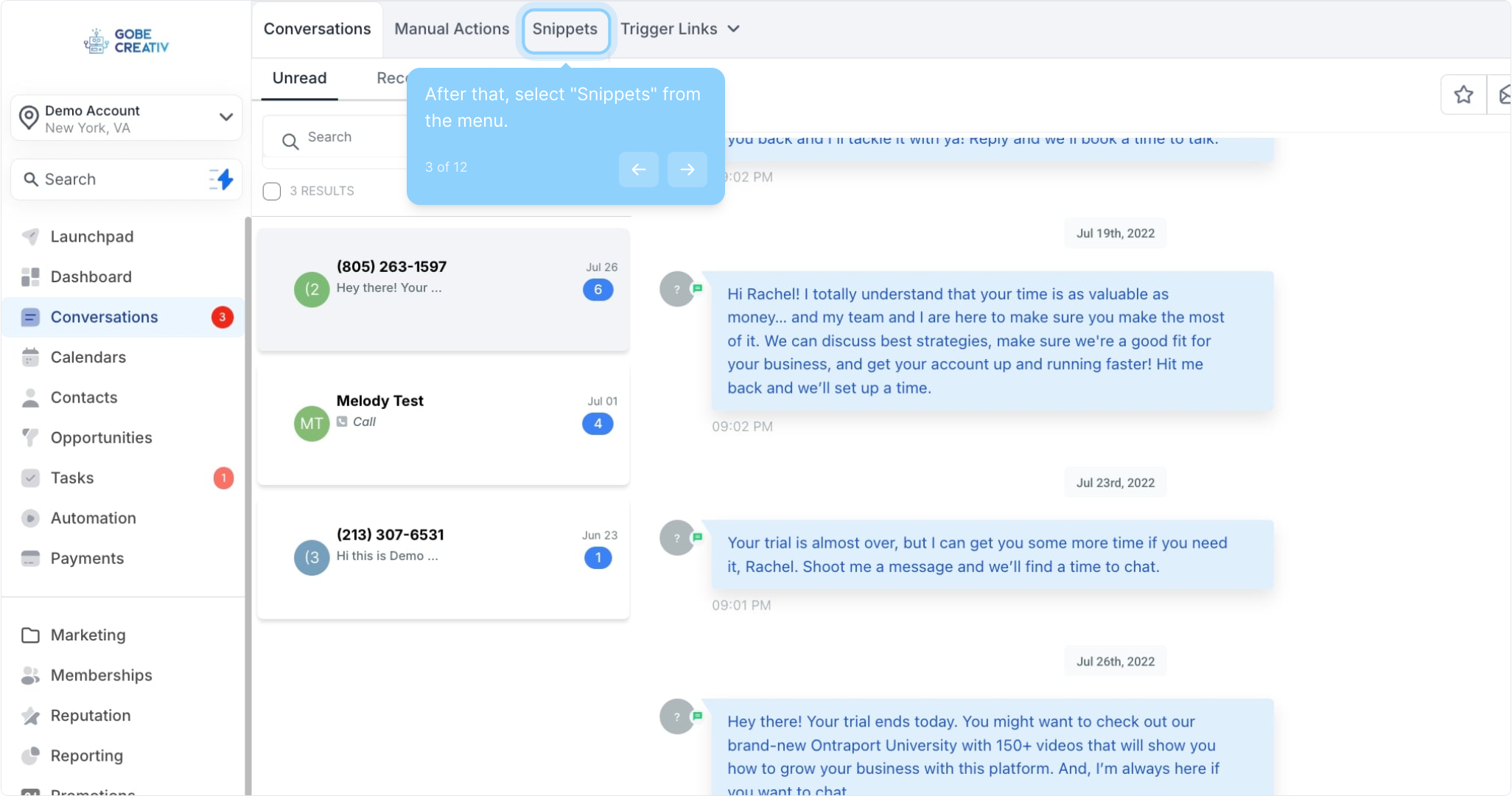
3. After that, select "Snippets" from the menu.
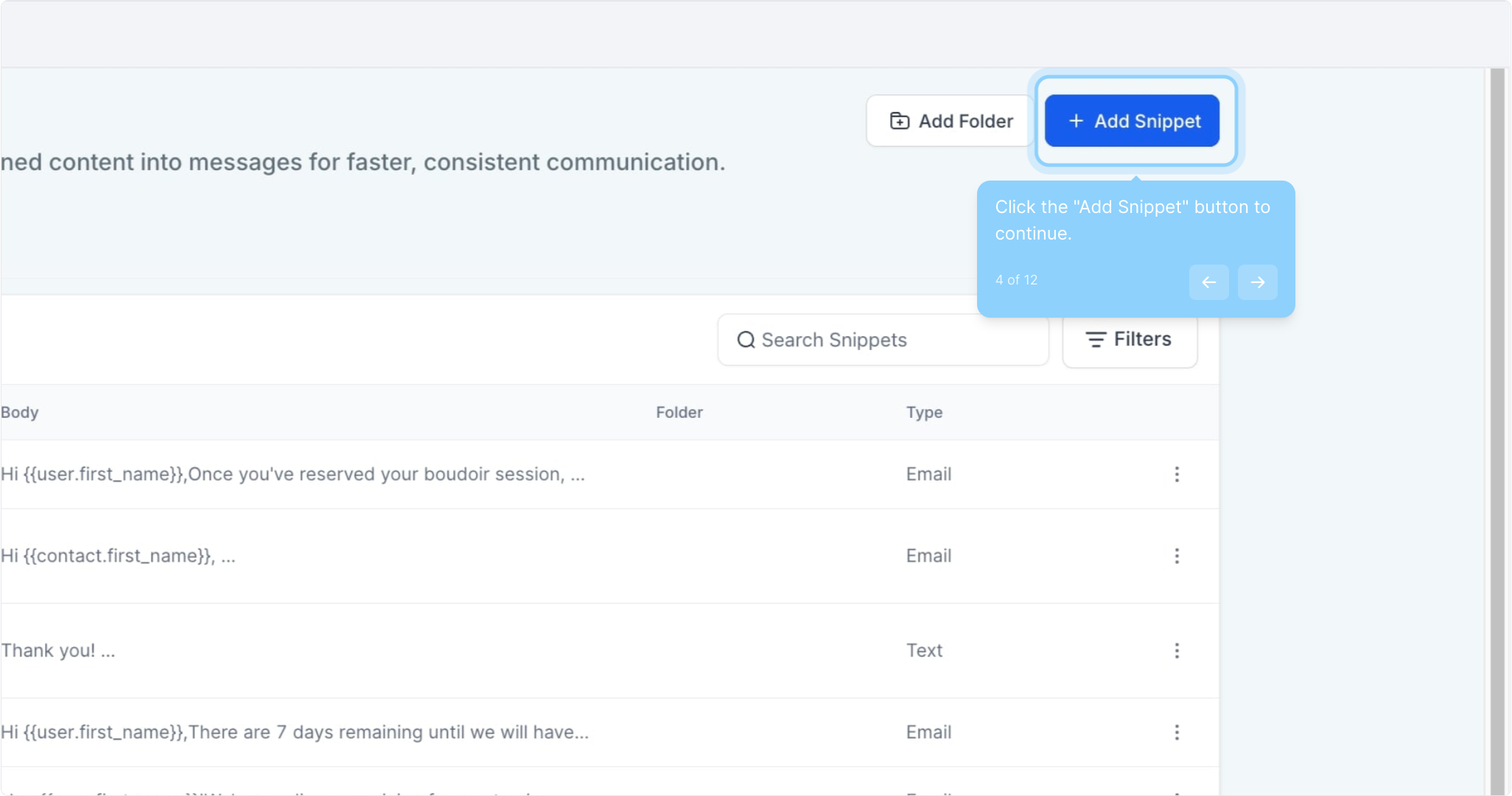
4. Click the "Add Snippet" button to continue.
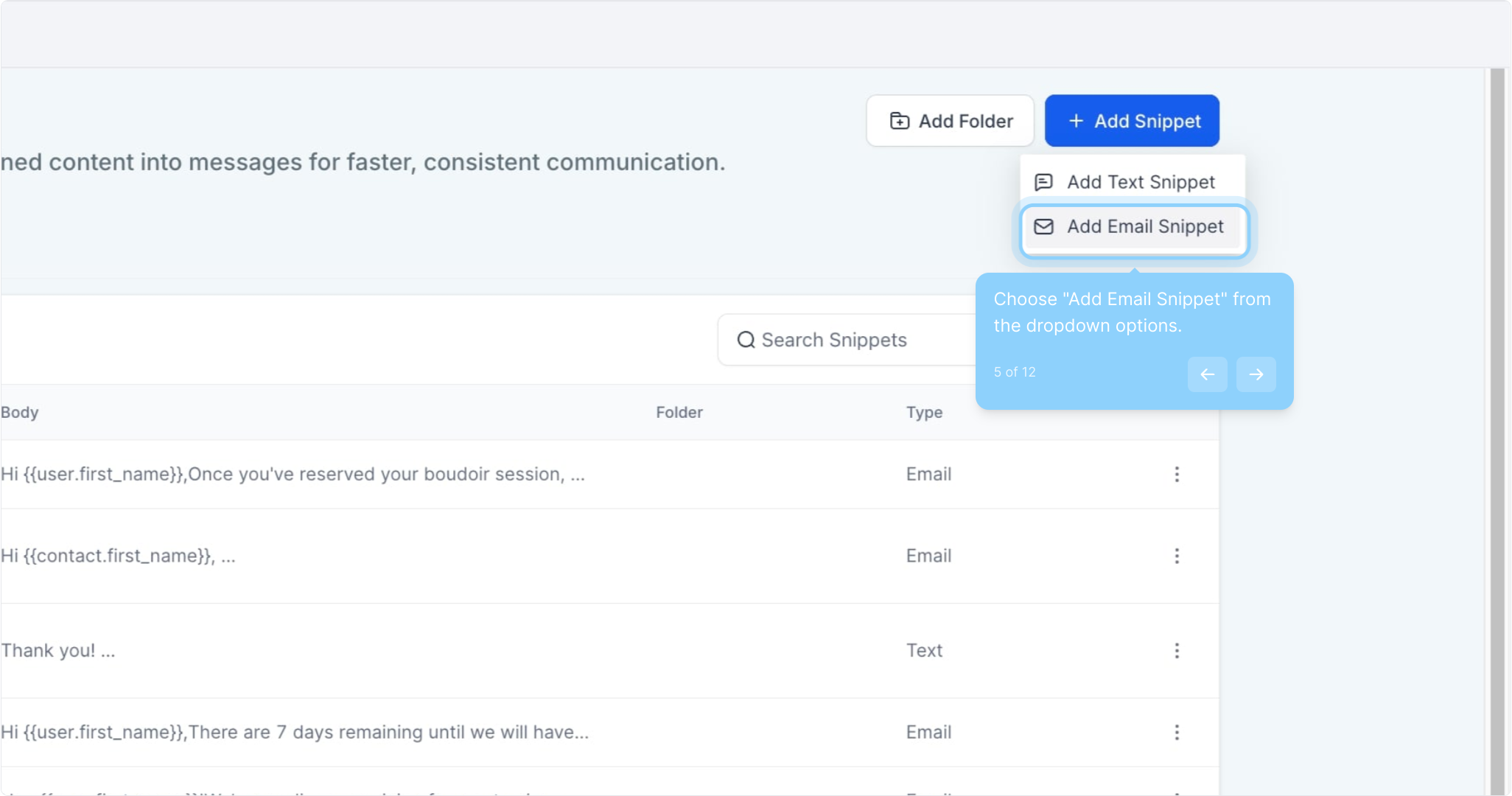
5. Choose "Add Email Snippet" from the dropdown options.
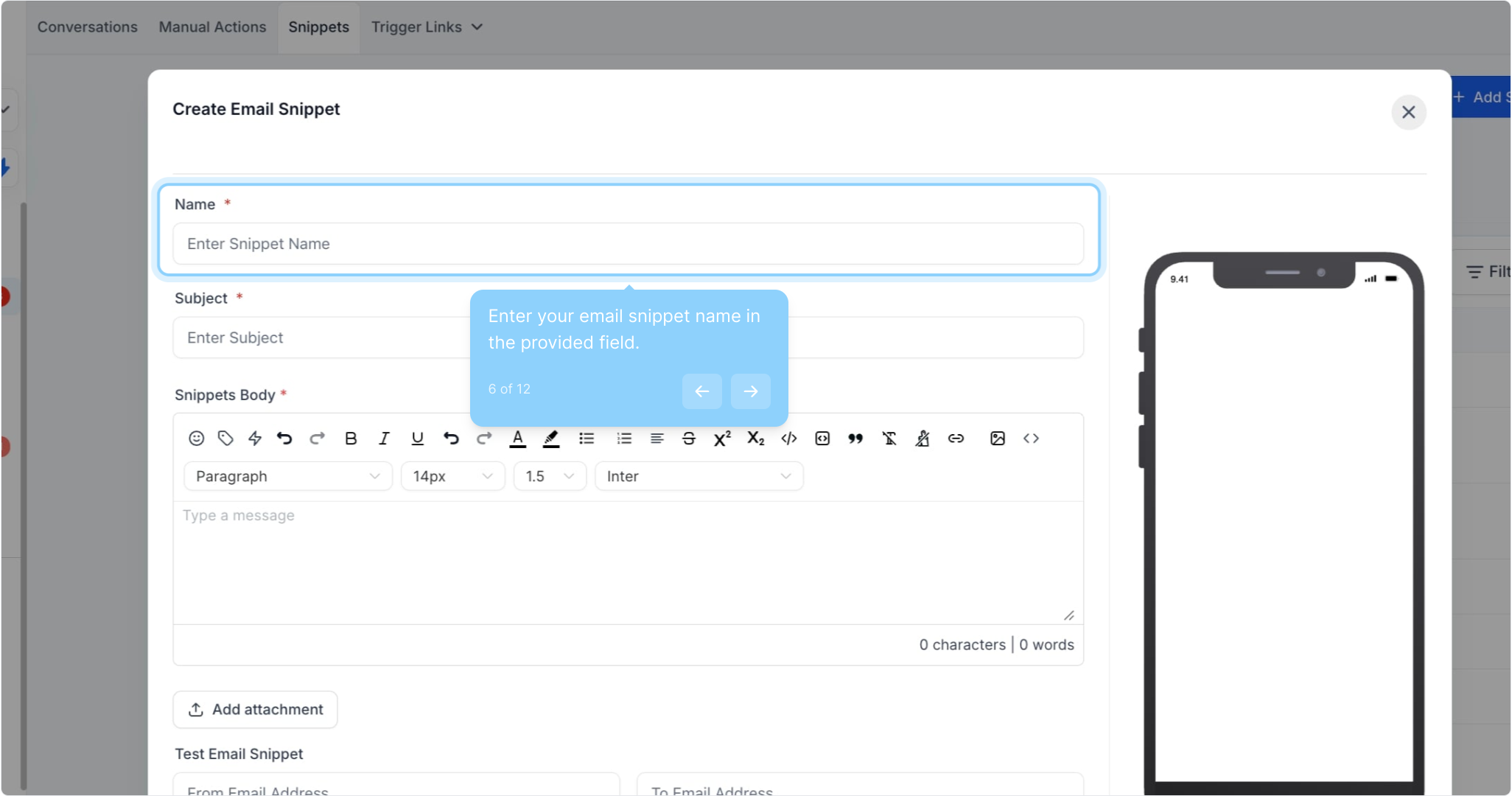
6. Enter your email snippet name in the provided field.
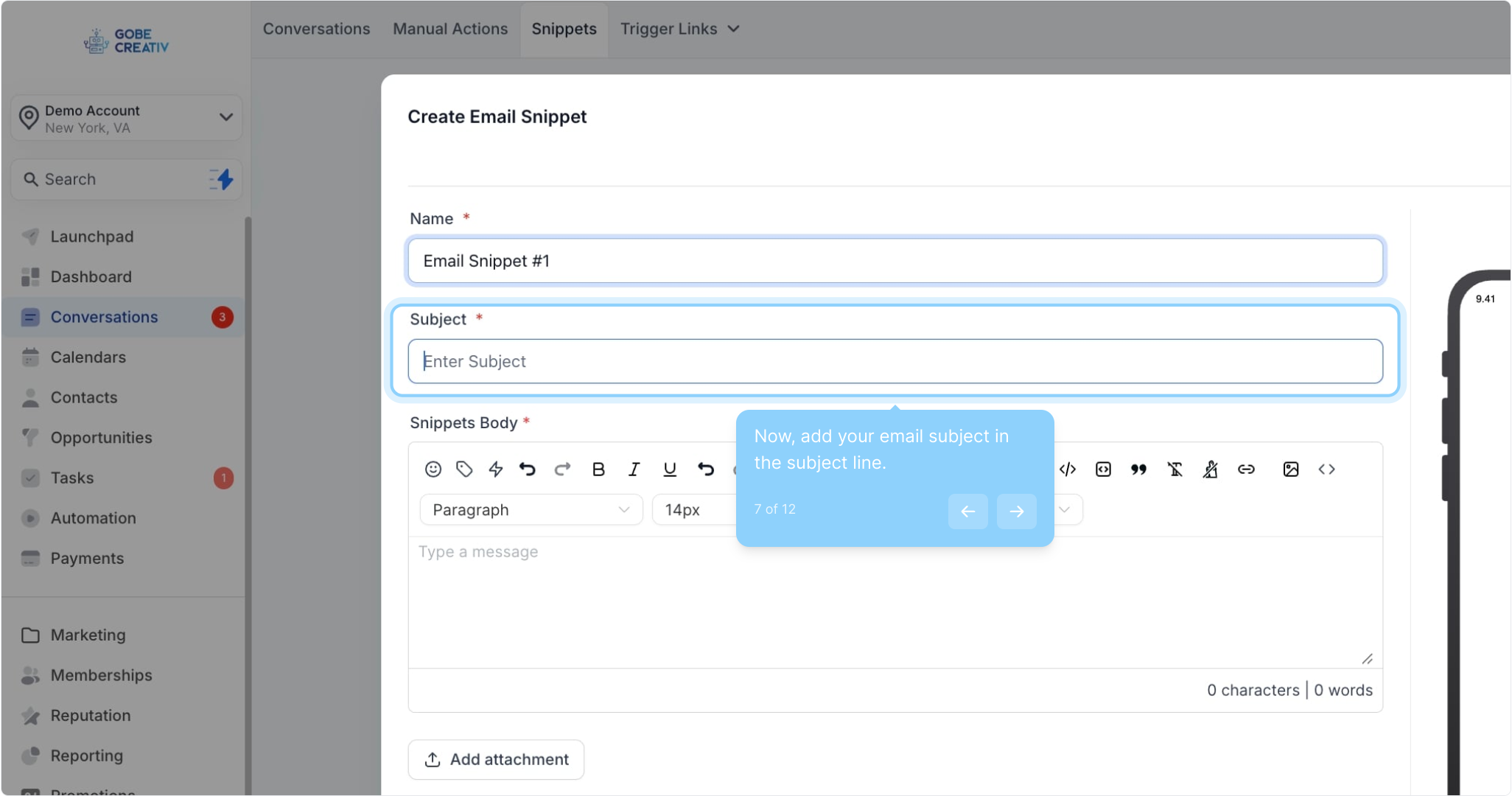
7. Now, add your email subject in the subject line.
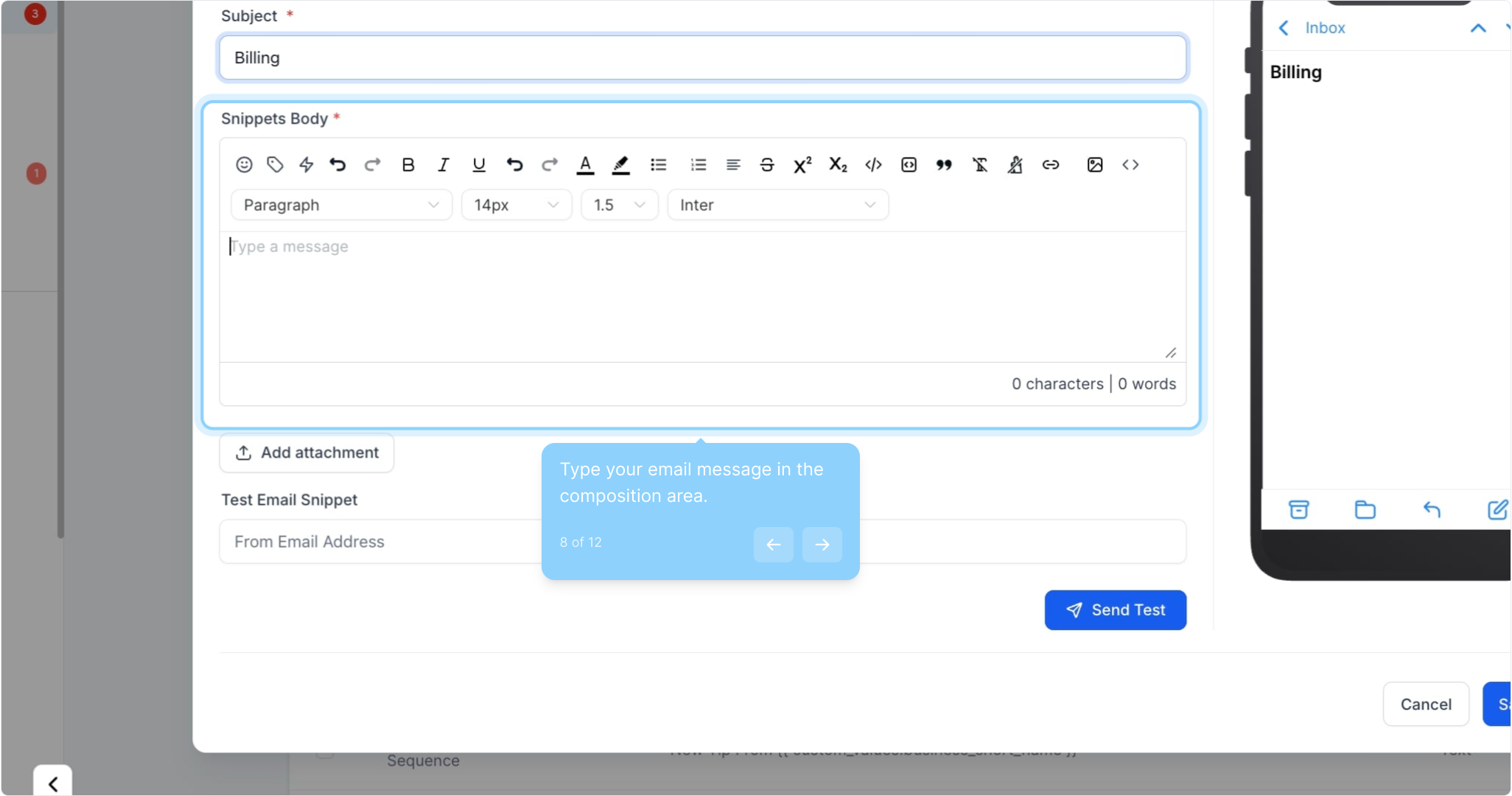
8. Type your email message in the composition area.
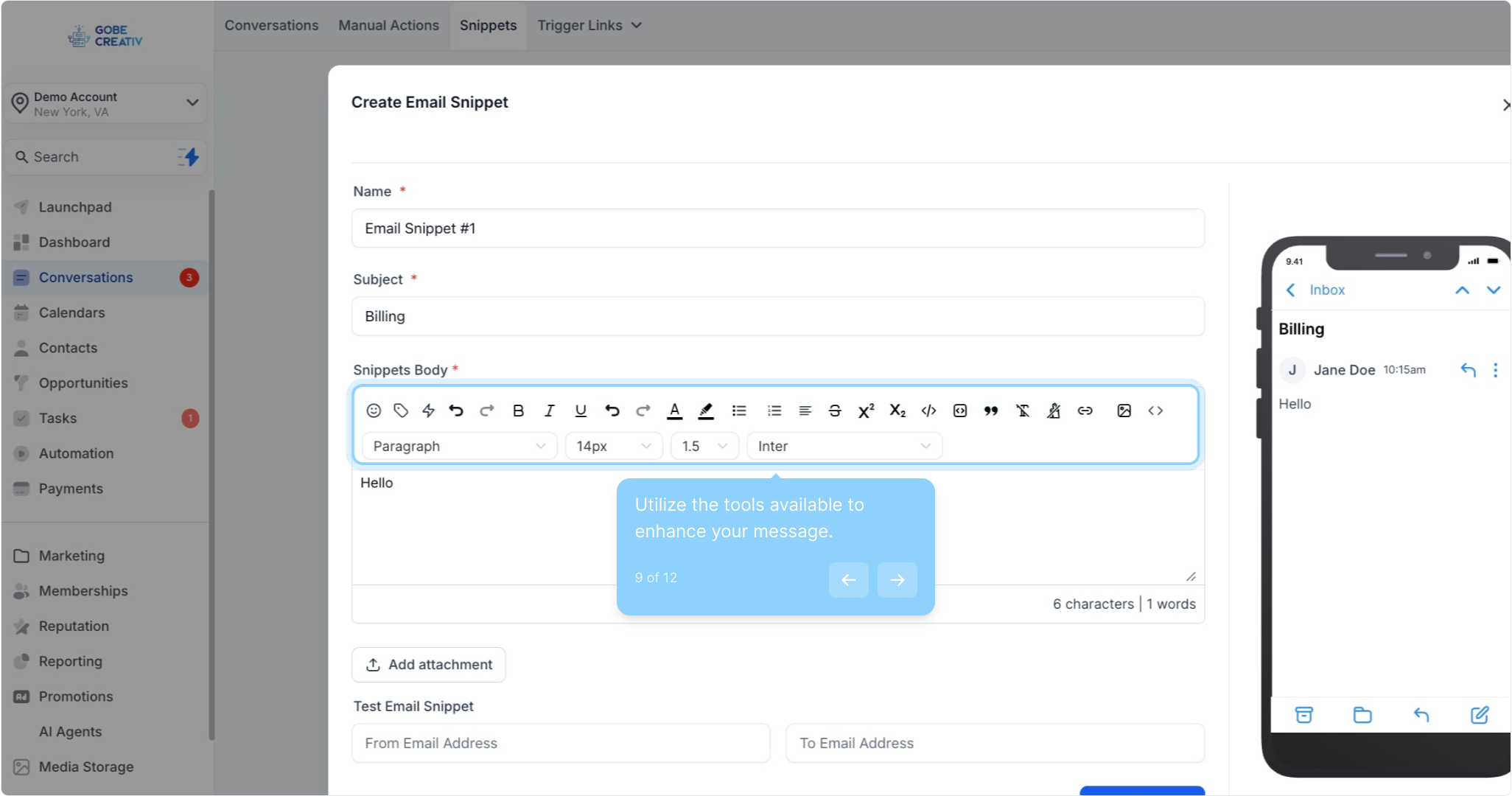
9. Utilize the tools available to enhance your message.
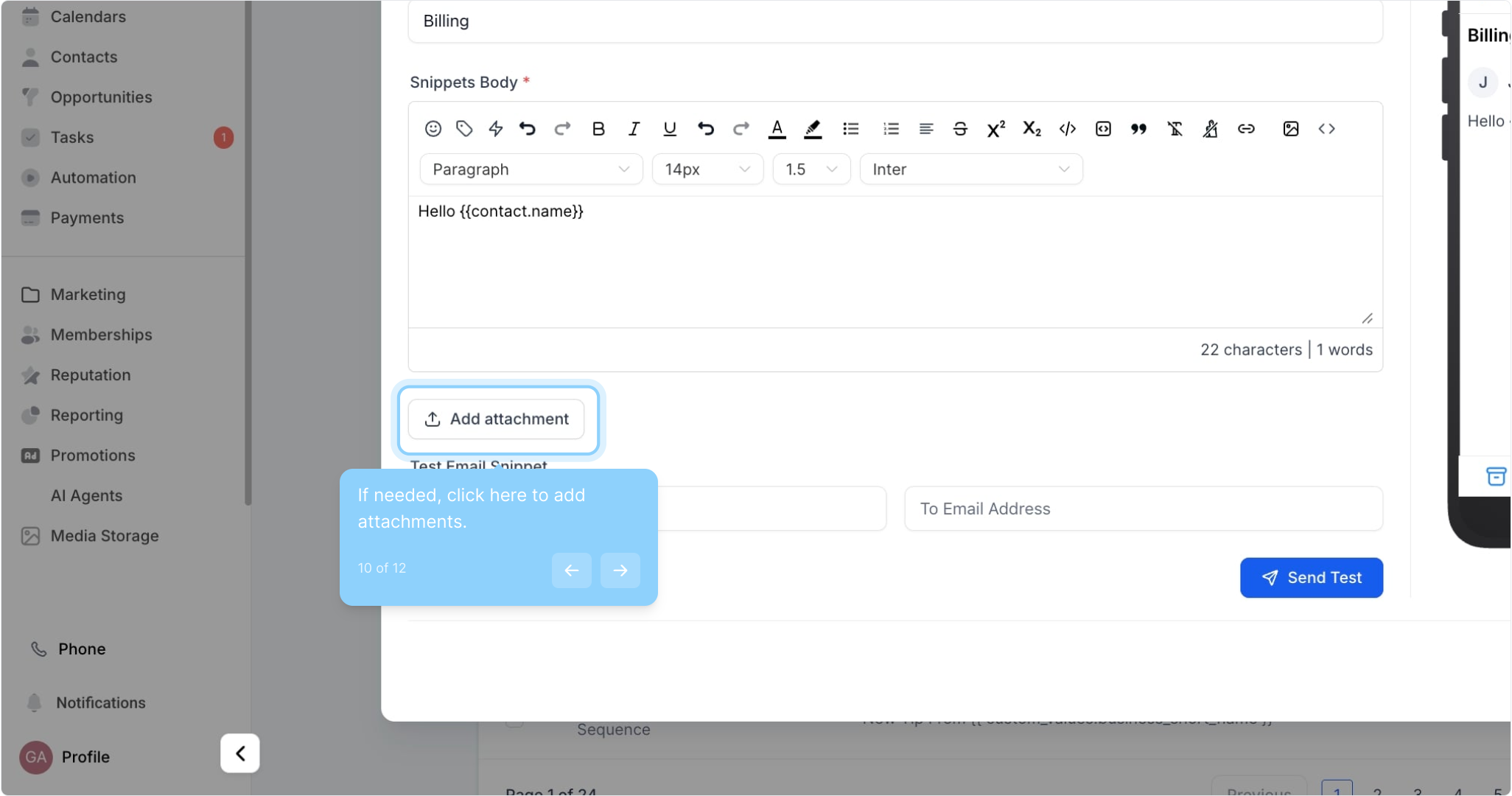
10. If needed, click here to add attachments.
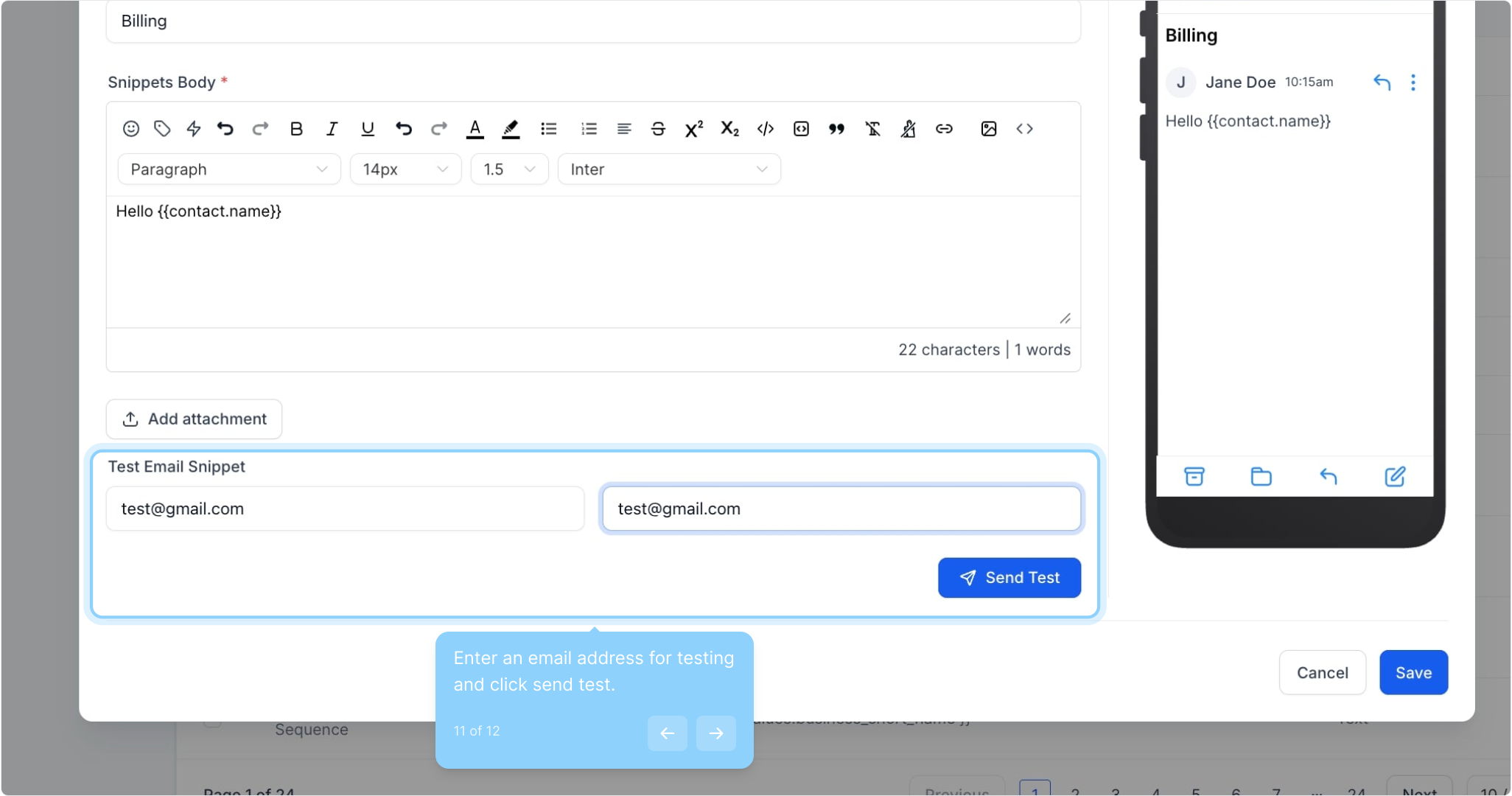
11. Enter an email address for testing and click send test.